
Falix Help Center
Desktop Software FalixCoins
Client Panel Game Panel
Last updated: 09/19/2021
Choose Minecraft Edition
Creating a Server
Creating a Server on your Account
To create a Minecraft Java server, go to your Client Panel. On the left sidebar, choose Create Server. Type in all required information like server name, memory amount, and server location. Once done, click the Create button and wait at least a minute in the Client Panel for the new server to be created for your account.
Now, in the Game Panel you should see the new server on your server list. If the server list indicates that it is still installing, wait at least 2 to 5 minutes for the installation to be complete. If the installation is taking longer than usual (over 5 to 10 minutes or more), head back to your Client Panel and delete, then re-create the server.
Starting the Server
Select your new server and go to the Console tab, usually already selected by default. Click the Start button, located in the upper left corner of the Console tab. You’re going to be selecting which type of server you want during the first startup of your new server. In this case, we’re creating a Minecraft Java server, to select Minecraft Java, then the type of Minecraft Java server that you want like Vanilla or PaperMC, and select the version of Minecraft Java you want to play on.
Click “I Accept” when the Mojang EULA pop up appears. The server is turned off for a few moments, then turn back on, and will continue to boot.
During the first boot of any Minecraft server, it may take a while to prepare spawn area.
Using a Custom Jar
Falix will automatically detect the custom.jar on the next launch of your server and will use the file to boot.
Choosing Your Server Java Version
Minecraft Versions
Use Java 8 for Minecraft 1.12.2 or older
Use Java 11 for Minecraft 1.13 or newer
Use Java 16 for Minecraft 1.17 or newer
Set a Default Version
Make sure your server is turned off before doing the next steps.
To make a Java version the default one, so that you don’t need to select it every time you start your server, visit the game panel, find and click on your server, find the “Startup” page on the top bar, scroll down to “Variables”, then find “JAVA VERSION” and type the following for:
Java8
Java11
Java 16
Alternatively, choose it in the “Docker Image” dropdown.
Now, go back to your console, start your server and you’ll see it using the Java version you set.
Accepting Mojang’s EULA
If for whatever reason clicking “I Accept” didn’t work when creating your server, you can still accept the EULA manually.
Optimizing your Server
Optimizing your server is a great way to reduce lag and server load, as it increases the efficiency of the server, letting it process requests quickly. By doing this, you will also increase TPS.
Pre-requisites
Choosing the right server type is very important. An example of a good server software type is Purpur, as it is very optimized and provides a ton of configuration options.
How do I optimize my Server?
You can find a detailed guide here for PaperMC, or you can use this one for Purpur or other PaperMC forks. These guides give a detailed explanation of all the settings they do on your server. To use them, go to the said files and configure them as the guide shows.
You also have a shortcut. You can check out premade configs by clicking here and then edit the values to your liking (PaperMC).
Startup Flags Startup flags are also very important for optimization and may make a major difference in performance.
Why should I use these startup flags? These flags help keep your server run with a stable TPS by tweaking different allocation and garbage collection settings for Minecraft. For further information on these flags, check out this blog.
Configuring
Message of the Day

Also known as MOTD, is the message that shows up below the server name on a multiplayer server list. Usually used to say what’s new about the server and/or also displaying what version it supports. Sometimes also used to indicate what games it has to offer or just a short description of the server.
To configure MOTD(Message of the Day), the setting for this is usually found in the server.properties file. Simply just change it to what you want for your Minecraft Java Server.
If you’re interested in changing text colors, use these color codes:
| Preview | Color Code |
|---|---|
| Black | \u00A70 |
| Dark Blue | \u00A71 |
| Blue | \u00A79 |
| Dark Green | \u00A72 |
| Green | \u00A7a |
| Dark Aqua | \u00A73 |
| Aqua | \u00A7b |
| Dark Red | \u00A70 |
| Red | \u00A7c |
| Dark Gray | \u00A78 |
| Gray | \u00A77 |
| Dark Purple | \u00A75 |
| Light Purple | \u00A7d |
| Gold | \u00A76 |
| Yellow | \u00A7e |
| White | \u00A7f |
Server Icon
The server icon helps indicate the branding of your Minecraft Java server, it’s easy to set one. Simply create an icon that is 64×64 in resolution. Name the server icon as server-icon.png and add it to the root of your Minecraft Java server files.
Player Limit
Setting Operators
An operator is a player with administrative access to your server, giving them full access to all commands. Even commands like /stop or /restart. To set an operator, use:
As an example, if you wanted to op Notch, you would use:
If you ever need to remove a player as operator, you could replace /op with /deop
Please don’t use / in the Console tab, or will output as “unknown command”. / should only be used in-game.
If you want to give some players access to specific admin commands, but not everything, you can use LuckPerms for this, which we all recommend.
Connecting
Find your Server IP Address
In your Game Panel the IP is shown in the upper left on the Console tab. Use this to connect to your server. It should look something like ult##.falix.gg:#####.
If you’re looking for the numeric IP, this usually shows up when booting the server.
Play In-Game
On your Multiplayer server list, click Add Server, then put the IP for your server into the IP Address box. As for the Server Name, this can be set as whatever. Click Add and the server should appear on your list.
Creating a Server
Creating a Server on your Account
To create a Minecraft Bedrock server, go to your Client Panel. On the left sidebar, choose Create Server. Type in all required information like server name, memory amount, and server location. Once done, click the Create button and wait at least a minute in the Client Panel for the new server to be created for your account.
Now, in the Game Panel you should see the new server on your server list. If the server list indicates that it is still installing, wait at least 2 to 5 minutes for the installation to be complete. If the installation is taking longer than usual (over 5 to 10 minutes or more), head back to your Client Panel and delete, then re-create the server.
Starting the Server
Select your new server and go to the Console tab, usually already selected by default. Click the Start button, located in the upper left corner of the Console tab. You’re going to be selecting which type of server you want during the first startup of your new server. In this case, we’re creating a Minecraft Bedrock server, to select Minecraft Bedrock, then the type of Minecraft Bedrock server that you want like Vanilla or PMMP, your server will start downloading the required files which should only take a few moments. After installation, start the server again.
Configuring
All options are located in the server.properties file, this may appear mostly empty with only the port and ip there. The port and ip options you should not touch.
If you need to change an option, just add the line for it. Example, if you want to change the gamemode to creative, then just add:
Server Icon
The server icon helps indicate the branding of your Minecraft Bedrock server, it’s easy to set one. Simply create an icon that is 64×64 in resolution. Name the server icon as server-icon.png and add it to the root of your Minecraft Bedrock server files.
Setting Operators
An operator is a player with administrative access to your server, giving them full access to all commands. Even commands like /stop or /restart. To set an operator, use:
As an example, if you wanted to op Notch, you would use:
If you ever need to remove a player as operator, you could replace /op with /deop
Please don’t use / in the Console tab, or will output as “unknown command”. / should only be used in-game.
Connecting
Find your Server IP Address
In your Game Panel the IP is shown in the upper left on the Console tab. Use this to connect to your server. It should look something like ult##.falix.gg:#####.
If you’re looking for the numeric IP, this usually shows up when booting the server.
Play In-Game
On your Servers list, click Add Server, then put the IP for your server into the IP Address box, then add the correct port number. As for the Server Name, this can be set as whatever. Click Add and the server should appear on your list.
Falixnodes хостинг для майнкрафт
Falix Software (Formly FalixNodes Software)

Simple and easy to use. Access Falix services all from one place like your client and game panel, help center, status, and more.
Download from our official website.


The stable channel is the production build of Falix Software, includes final changes in each new version.
Beta (Not Available)
The dev build of falix Software will usually introduce improvements made of the past 7 days, mostly stable probably known bugs.
Alpha (Not Available)
The alpha build of Falix Software usually shows what was done within the last hour or two, or what was done last night, the alpha channel is expected to be the most buggiest and may crash or break the software. You may have to re-install the alpha channel if the software does break.
Why is Font Awesome included offline? You could use a script instead.
What is Font Awesome?
Font Awesome is a font and icon toolkit based on CSS and Less.
Why include it offline?
I understand that using one line of code, in this case a link to the Font Awesome script, will do the trick. Yes, you can do that, but the reason why I’m including Font Awesome locally with the software is for offline usage.
If the user is offline, the icons in the software won’t load unless Font Awesome is included locally.
Why all these requirements to just build it?
The reason why the software needs all these requirements like Python and Visual Studio(Desktop Development with C++) is because of technology that was coded into the software like Glasstron for visual appeal and XTerm for the built-in terminal to use FalixCoins Miner with.
I, Korbs, am mostly comfortable and knowledgeable with web coding languages such as HTML, CSS, and JavaScript. Using Electron was the right approach for me, and I’ve acquired a huge amount of experience with it over the last three years. The process of doing cross-platform support was also shortened and easier for me to do.
There are tons of other good reasons why to use Electron, you can read more about that here on Alibaba Cloud (Article).
🔧 Preparing to Build
Downloading Source Code
If you have Git already installed, run the following command to download and automatically extract the source code from our GitHub:
If you have GitHub CLI already installed, run the following command to download and automatically extract the source code from our GitHub:
If you don’t have Git or GitHub CLI installed, you can download it manually from our GitHub or install Git or install GitHub CLI.
You can also download the source code manually and go from there.
There are some other assets you may need to change if you’re forking this repo for another host or for a simliar project. Assets for the background images, names, etc need to be changed as they may contain resources from Falix or the name «Falix» in general. You also need to update other stuff like the update server provider and learn how it works if you do plan to include auto updating like we did.
To make sure your fork of the software doesn’t recieve notifications for Falix Inc, you’ll need to either remove Pushy all together or change the app ID of Pushy.
If this isn’t changed, your customers who’ll use the software may recieve push notifications from the forked version of the software and may be confused.
As seen here in the package.json, there is a url «https://updates.korbsstudio.com/falix-software/», which is a self hosted update server.
If you don’t plan to self host your own update server, then GitHub Releases is recommended. Simply change the publish area of the package.json file to this:
You’re required to have your GitHub token to publish new releases with Electron Builder, so add the token to the environment.
Make sure to restart your terminal after doing the export command.
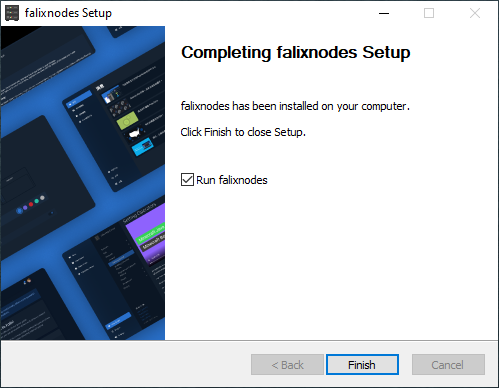
Just download the [Figma file](https://github.com/FalixNodes-Software/Desktop-App/tree/master/build/assets/figma/Falix Software Resources.fig) for this and simply update the screenshots. Or if you want, you’re allowed to create your own image for the sidebar.
What’s a BMP file? The BMP file format, also known as bitmap image file, device independent bitmap file format and bitmap, is a raster graphics image file format used to store bitmap digital images, independently of the display device, especially on Microsoft Windows and OS/2 operating systems. In this case, we’re using NSIS, which requires the use of BMP.

FalixNodes Software uses Electron and other required packages to run the app and uses Electron Builder to package it up nicely. Run the following commands to install them:
After all required dependencies are installed, you should be able to run the software with the start command provided in package.json.
To run the start command, simply run the following command:
Wanna create an installer? You can do this with Electron Builder, there is already a build command ready which is provided in package.json.
To start building the installer, run the following command:
After installer is done building, check the /dist/ folder.
This will show data and timing of Falix Software being ran on my machines. This will show how well the computer performs running the software, as we’re still improving performance in v3.
HP All In One 24-e014
Dell Inspiron 15-3552
Note: This low end laptop appears to have no fans.
Note: This low end laptop appears to have no fans.
Running software after intended install (Not building)
HP All In One 24-e014
Dell Inspiron 15-3552
Running commands from package.json in the following order:
HP All In One 24-e014
AppImage file is smaller than NSIS
Dell Inspiron 15-3552
Electron Titlebar OS Detection: Korbs Studio
About
Simple and easy to use. Access Falix services all from one place like your client and game panel, help center, status, and more.
Список бесплатных хостингов Minecraft

Список бесплатных хостингов Minecraft.
Хочешь поиграть с друзьями но не хочешь платить за сервер майнкрафт? С бесплатными хостингами для сервера майнкрафт ты решишь эту проблему.
Внимание: Любые бесплатные хостинги не годятся для открытия своего проекта. Не ищите бесплатные хостинги с которыми можно открыть свой проект. Их попросту нет и не будет. Бесплатный сыр бывает только в мышеловке. Они могут показывать вам рекламу, постоянно отключаться и лагать.
Хостинг Minecraft-Mosting.pro

Плюсы бесплатного хостинга:
— Установка и обновление в 1 клик
— Управление модами через графический интерфейс
— Автоматические бэкапы
— Настройка домена
— Запланированные задачи
Хостинг Freemc Host

Плюсы бесплатного хостинга:
— Максимум 3 сервера бесплатно
— Любое количество слотов и плагинов
— Реклама и нельзя её отключить (просит отключит блокировщики рекламы, из за него панель не доступна)
— Иногда бывают баги
— Обязательно нужен Discord для авторизации, так же чтобы создать свой сервер нужно подкписаться на их дискорд сервер
— Этот хост английский и не все поймут что и как
Хостинг minefort.com

Почему именно он:
— Максимум 1 сервер бесплатно
— Легкая установка плагинов
Недостатки:
— Нужна лицензия чтобы зарегистрироваться
— Нельзя выключить лицензию в настройках
— Этот хост английский и не все поймут что и как
— Каждые 30 секунд гибернация (даже если есть игроки)
Хостинг Aternos

— Любое количество слотов и плагинов
— Поддерживает русский язык
— Максимум 1 сервер бесплатно
— Очень много рекламы
— Если нет игроков, то выключается через 30 секунд если не успеете нажать кнопку возобновить
— Долгая очередь для включения сервера
— Есть доступ только к папке plugins
Хостинг Server.pro

— Очень удобная панель
— 1 сервер бесплатно, остальные покупать
— Недорогие платные тарифы
— Полный доступ к файлам
— Есть обходы ограничений
— Выключается каждые 60 минут
— Отправляет рекламу в чат
Хостинг SkyNode

— 1 сервер бесплатно
— Не очень удобная панель
— Ваш сервер удаляют каждый час если вы не нажмете кнопку возобновления
9 бесплатных хостингов для Minecraft
Список из 9 бесплатных хостингов Майнкрафт навсегда с описанием каждого. Только один из серверов обладает поддержкой русского языка, зато многие поддерживают моды, плагины, ftp, mysql и осуществляют техподдержку.
Выделить из них лучший я не могу, так как кому-то нужны моды, кому-то нет. Кому-то важны бекапы, кому-то нет. Ну, вы поняли, короче. Выбирайте сами исходя из ваших требований.
Если какой-то их хостингов перестал работать, просьба сообщить мне об этом, выделив его название и нажав ctrl + enter.
1. Aternos
Единственный из списка на русском языке. Бесплатный сервер навсегда.
40 млн пользователей, каждый день играют 750 000 человек.

2. FreeMC
Интерфейс на английском. Регистрация только через Discord. Позволяет создавать бесплатно три сервера Майнкрафт с поддержкой sFTP и возможностью настраивать версию игры. А еще есть возможность увеличить количество оперативной памяти прямо в настройках.
У хостинга есть свой Discord с 50 000+ участниками, где можно задавать вопросы техподдержке.

3. MineFort
Все на английском. Minecraft Bedrock не поддерживается, пиратские версии игры не поддерживаются.

4. SkyNode
На английском. Компания специализируется на игровых серверах, и у нее есть бесплатный тариф для хостинга Майнкрафт.
Мгновенного запуска нет, поддержки плагинов нет, бекапов нет. Круглосуточная тех поддержка есть.

5. Server.Pro
Английский интерфейс. Хостинг специализируется на игровых решениях. Есть несколько тарифов, в том числе для Minecraft, в том числе для бесплатного пользования.
Free Plan позволяет играть 10 участникам одновременно. Использовать при этом до 10 плагинов. Модпаки не поддерживаются, а вот Minecraft Bedrock можно юзать на бесплатном тарифе.

6. ScalaCube
Вы получите доступ к ftp, ssh, mysql. Моды и плагины поддерживаются.
Выглядит как сервер мечты, но подвох в том, что позиция компании насчет бесплатного хостинга такая:
Поэтому в отзывах и встречаются жалобы на фризы, тормоза, зависания и вылеты.

7. MineHut
Снова на инглише. Бесплатный тариф позволяет играть одновременно 10 игрокам с 12 плагинами.
У сервера 1 Гб оперативки, бэкапов нет, техподдержки нет, реклама есть.

8. OMGserv
Язык как обычно. Можно выбрать местоположение сервера: Франция или Северная Америка (если вы живете в СНГ или России, берите Францию).
Только для 4 игроков, без статического айпишника, базы данных, бэкапов, поддержки.
Зато бесплатно вы получите анлимное место на диске, сервер с процессором E5-2670 (2.6 / 3.3GHz), доступ по FTP.

9. FreeMCserver
Имеет целых два бесплатных тарифа:
High Memory Server
Always Online Server
Если что, в админ панели вы можете переключаться между этими двумя типами в любой момент.