
Fallout 4 мод органайзер на русском
aka_sektor
Локализатор
—>

Добавлено: 19 Январь 2017
Обновлено: 29 Июнь 2020 | Обновлено до v2.2.2.1
Просмотров: 73044 | Загрузок: 14697 | Комментарии: 233
Обязательно! Установите пакет Microsoft Visual C++ Redistributable 2015-2019, иначе не будет запускаться с ошибкой «vcruntime140_1.dll».
Распакуйте архив и переместите файлы в корневую директорию игры.
Например: D:\SteamLibrary\steamapps\common\Fallout 4\MO2
— При первом запуске, необходимо выбрать куда размещать моды: произвольный путь или в папку с утилитой (portable).
Рекомендуется последнее.
— По умолчанию, меню утилиты на английском.
Чтобы включить русский, достаточно кликнуть по иконке «ключа и отвертки«, и в появившемся окне нажать ОК (утилита должна автоматически выставить русский).
— Запускать игру можно несколькими способами:
Сразу в игру
Лаунчер
Сразу в игру через Script Extender
— Чтобы утилита не обращалась к интернету каждый раз, нужно включить «Автономный режим«.
Перейдите в «Настройки«, вкладка «Nexus» и поставьте галочку.
По умолчанию, моды в Fallout 4 работать не будут.
Чтобы это исправить:
1. Перейдите в папку с файлами настройки игры по пути: C:\Users\ВАШЕ_ИМЯ\Documents\My Games\Fallout4
Внимание! Если до этого уже запускали органайзер, путь другой: D:\SteamLibrary\steamapps\common\Fallout 4\MO2\profiles\Default
2. Откройте любым текстовым редактором файл Fallout4Prefs.ini
3. Найдите в нём секцию [Launcher], и допишите после неё:
bEnableFileSelection=1
Список игр, которые поддерживает Mod Organizer 2:
Возможности:
Профили (2):
С MO вы сможете активировать разные моды при разных прохождениях. Вы можете рассматривать усстановленные моды как некий набор модов, часть из которых (или все) вы можете активировать для каждого профиля.
В дополнение, вы можете настроить фильтр сохраненных игр для каждого профиля, чтобы когда вы стартовали игру с этого профиля, в сохранениях был виден только определенный персонаж.
ПРИМЕЧАНИЕ: Фильтр сохранений является экспериментальной функцией. Он может заставить игру делать сохранения с цифрами, которые уже были использованы, но насколько я могу судить, это не имеет какого-либо негативного влияния.
MO исправляет эту проблему и пока что это единственный инструмент, решающий эту проблему. В интерфейсе отметьте все BSA, которые нужно загрузить и все готово. Файлы из BSA будут иметь приоритет соответственно своему номеру в списке загрузки и будут перезаписывать файлы из модов с более низким приоритетом.
Механизм загрузки:
Для своего колдовства, часть MO должна быть активна пока игра запущена. Чтобы этого достичь, вы можете начать игру прямо через интерфейс MO. Интерфейс также может создать ярлыки, при помощи которых вы запустите одновременно и MO и игру.
ВПРОЧЕМ, этот механизм может не сработать на всех утановках. К примеру, на Steam-версии Oblivion.
MO предлагает два альтернативных метода:
Расширитель скриптов: если он установлен у вас (obse для Oblivion, fose для Fallout 3, nvse для New Vegas или skse для Skyrim) вы можете запускать его через Mod Organizer.
Прокси DLL: в этом режиме органайзер заменяет dll, являющийся частью игры на другой, который запускает оригинальный, и активирует MO. Сейчас я использую для этого steam_api.dll. Учтите, что метод протестирован только со Скайримом и Вегасом.
Если вы запускаете MO этими двумя способами, вам по-прежнему можете, запускать игру через интерфейс программы.
Для Обливиона (Стим): вам нужно активировать расширитель скриптов в качестве механизма загрузки и, к сожалению, вы не сможете запустить игру через MO. Используйте MO для настройки модов, затем выйдите и запустите Обливион через Стим, как обычно.

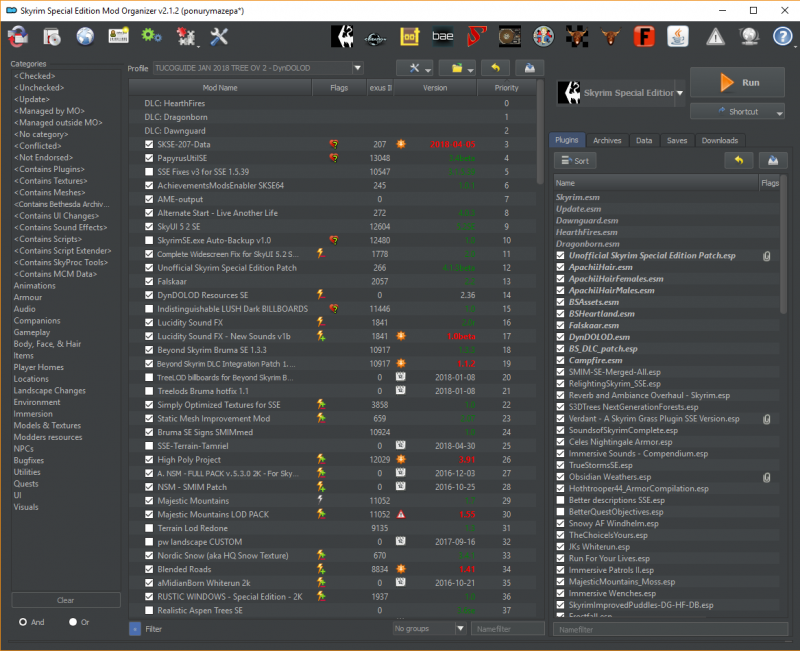
Установка:
Запустите установщик и укажите путь к вашей игре
Please log in or register
To enjoy the benefits of Nexus Mods, please log in or register a new account
Mod Organizer 2
File information
Last updated
Original upload
Created by
Uploaded by
Virus scan
Tags for this mod
About this mod
Mod Organizer is a tool for managing mod collections of arbitrary size. It is specifically designed for people who like to experiment with mods and thus need an easy and reliable way to install and uninstall them. Supports Morrowind, Oblivion, Fallout 3, Fallout NV, Tale of Two Wastelands, Skyrim, Skyrim SE, Skyrim VR, Fallout 4, and Fallout 4 VR
This mod does not have any known dependencies other than the base game.
Mods requiring this file
Credits and distribution permission
Author notes
This author has not provided any additional notes regarding file permissions
File credits
Thanks to Tannin for making this GPL 😀
Donation Points system
This mod is not opted-in to receive Donation Points
Straight donations accepted
(Here is outdated stuff)


Mod Organizer v2.1.3 has been released, see the logs section for all the changes.
Github Release Page
Mod Organizer 2 is a mod manager created by Tannin to support 64bit games like Skyrim Special Edition and Fallout 4 in addition to all the 32bit games MO1 already supported.
Tannin discontinued the project when he was hired by the Nexus team to develop their new Vortex mod manager.
MO2 was not completed and was left with many issues. LePresidente managed to fix it to a usable state by himself after SkyrimSE came out, adding support for it, and releasing v2.0.8.
The project took up speed again after a few more coders showed up in late 2017, and an incredible amount of work has been done!
Credits to Tannin, LePresidente, Silarn, erasmux, AL12, AnyOldName3 and many others for the development.
A Special Thanks to all the testers of the discord server and everyone else involved for supporting the project!
For a list of currently known issues and general info please see the pinned posts.
Mod Organizer 2 is an open project in the hands of the community, there are problems that need to be solved and things that could be added. MO2 really needs developers and if you have the programming skills and some free time you can really improve the experience of the modding community.
To have more information please join the open MO2 Development discord server : ModOrganizerDevs
You can find the MO2 code here: https://github.com/Modorganizer2
It’s subdivided into many repositories that can be found under LePresidente’s github repositories.
To setup a development environment on your machine there is an umbrella project that handles it. Here are the instructions to setup a dev environment.
If you want to help translate MO2 to your language you should join the discord server too and head to the #translation channel.
Through the work of a few people of the community MO2 has come quite far, now it needs some more of those people to go further.
MO2 survived because people spontaneously offered their help, no one forces them to continue spending their limited free time on the project.
So nothing is to be expected, everything is to be thanked for.
Mod Organizer (MO) is a tool for managing mod collections of arbitrary size. It is specifically designed for people who like to experiment with mods and thus need an easy and reliable way to install and uninstall them.
Differences with Mod Organizer 1:
MO1 and Mo2 can be considered different programs. The main difference between the two is that the virtual file system (vfs) used by Mo1 does did not support 64bit games. Because of this MO2 has a completely new vfs library (called usvfs) that was made to support 64bit programs as well. This library is more separate and independent from the rest of the program allowing for it to be potentially used even by other programs.
Another major difference is that Mo1 had a special system to manage Bethesda Archives (BSAs).
Tannin (the creator of both MO1 and MO2) decided to not include this feature in MO2 for the fact that it subverted how the the game actually loaded the Archives causing problems with tools and mods that relied on the original system to work. That in addition to the sheer complexity of implementing the feature with the new virtualization library and making it work with all the supported games (the Mo1 system was based on a hack).
From his experience and all the problems he had with Mo1, Tannin came to the conclusion that using a special system for BSA management that did not follow what the game did was a mistake.
We agree on that fact, having seen the problems it caused and compromises that the feature would have required.
We are working though in restoring BSA (and all other typs of Archives like BA2) parsing for conflict detection. This time it will follow the standard game rules, which are:
All Archives are loaded in the order of the plugins loading them (in Mo2 you can’t disable dummy plugins), and after that all loose assets are loaded on top. So loose assets can’t be overwritten by archives.
We are looking for the best ways to visually show the conflicts of BSAs as they don’t follow left pane order anymore, but right pane instead.
We will be looking into ways to not use dummy plugins to load BSAs in the future.
MO2 is of course receiving active development from the community while Mo1 does not, which means that there are and will be new features in MO2.
Listing everything here would be too long so to have a better idea of all the things that Mo2 adds you are invited to read the Changelogs that you can find under the LOGS tab.
Here is the list of all the games currently supported by MO2:
MO has several unique features not found in any other comparable tool:
What mod isolation means is that each mod is installed into its own directory outside the actual data directory.
Through some magic MO then shows the game (and any other 3rd party tool that works on the data directory) a «virtual»
data directory that is a merger of the actual data directory and all the mod directories.
This way no file ever get overwritten when you install a mod and your data directory can remain in a vanilla state.
You can simply change the «installation order» of mods from the gui and deinstall or temporarily deactivate one
without breaking other mods.
With MO2, you can have different mods active in different playthroughs. You can consider the installed mods as a pool of mods, and for each profile you can have a different set of them active. Disabled mods will not be visible to the game; as far as the game is concerned, they are not there at all.
Saves (along with their script extender counterparts) can be transferred or copied character-by-character inside of a profile (and back out), and you can then load only those profile saves in the game.
You can also copy in an individual settings file into the profile, and these settings will be unique to that profile. The settings can also be independently edited inside MO or via tools run through MO. (The settings files will appear to be in their standard location when edited this way.)
(This feature was removed from MO2 by Tannin and is pending review)
To work its magic, a part of MO needs to be active while the game is running. To achieve this, you can start the game from the MO User Interface. The GUI also offers the option to create shortcuts that will activate a minimal MO instance (basically just a dialog box) and immediately run the game (or related tools).
For Oblivion (Steam version) players: MO2 is currently unable to support the Steam OBSE loader as this requires us to hook the entire Steam application due to the way it works. We currently don’t have a workaround for this but are considering our options. All other versions of the game should work.

Mod Organizer 2 supports third party plugins!
https://github.com/Modorganizer2/modorganizer/wiki/Writing-Mod-Organizer-Plugins
A list of currently included plugins and available third party plugins can be found on the Mod Organizer 2 SSE page
Mo2 already uses plugins for many parts of the current functionalities (supported games are plugins, the BSA extractor is a plugin, the texture preview is a plugin etc. ).
Your third party plugins can be distributed on Nexus or GitHub or wherever you prefer and, if it works well and could be useful for most users, it can even be incorporated in the main Mo2 install under your request.
Here you can find more info on writing your own Mo2 plugins:
https://github.com/Modorganizer2/modorganizer/wiki/Writing-Mod-Organizer-Plugins
Looking at existing plugins might be the best way to learn so we will list here the existing Mo2 plugins for reference.
Contact us though the discord server: https://discord.gg/5tCqt6V if you want to know more about creating plugins or if you want your third party plugins to be listed on the Mo2 page.
Mod Organizer 2 should not be installed inside a system protected folder such as Programs Files (x86).
Also avoid installing MO2 inside the Game folder as this causes problems with the vfs library.
Installer:
Simplest for non-portable instanced installations, using the installer should be as simple as downloading and running the exe and specifying your install directory. It will download and install all necessary components required to run MO2.
If you want to update an existing Mo2 install using the installer, simply select your current MO2 folder as the install location and the installer will take care of the rest without endangering your modded setup.
As Windows tends to trust installer files better than manually extracted files, using the installer may provide a more problem-free experience.
Archive:
Often ideal for portable installations, simply extract MO2 to a new location for each game you wish to manage. It can still be used for instanced installs.
Before unpacking the Mod Organizer 2 zip, make sure to open the properties and hit ‘Unblock’ if it shows up. If you don’t do this then various libraries may fail to load or run when trying to use Mod Organizer. This can break certain installers or the virtualization system altogether.
If you wish to update an existing Mo2 installation it is generally a good idea to make a clean upgrade following these instructions:
1. Go to your MO2 installation directory, delete all directories and files EXCEPT for \downloads, \mods, \profiles, \overwrite, ModOrganizer.ini and categories.dat (leave those dirs and files, delete the rest).
2. Extract the new version to this location.
3. Start MO2.
Mod Organizer 2 depends on the MSVC 2017 runtime library. You must download and install this for MO2 to work properly (in addition to the Extra Steps). Download and install both the x86 and x64 versions of the 2017 redistributable:
VC redist x64
VC redist x86
If you are not on Win10 you might also need:
https://support.microsoft.com/en-us/help/2999226/update-for-universal-c-runtime-in-windows
Note:
Once installed, make sure the MO2 directory and/or files are excluded from any antivirus you may have installed. MO2’s virtualization system hooks into the running applications and modifies system calls, and many antiviruses do not like this.
Migrating from Mod Organizer 1:
GamerPoets covered this in this video of his official MO2 guide (that we highly recommend):
https://www.youtube.com/watch?v=utNBS4LflIc
Mod Organizer 2 works with the vast majority of tools. What this means is that they can be made to work on the «virtual» data tree.
Among the tested applications are: OBMM (though OMOD scripts may not compile properly), FOMM, MLOX, LOOT, Wrye Bash, FNIS, xEdit, DynDOLOD. and many more.
If you find an application that does not work, please report it to us.
Q: I installed a mod and it’s not working!
A: Please first verify that the directory structure is correct. Many mods are not packaged for easy installation. The files in the MO mod directory should match the files that go into the Data directory in your game. You may have to shift files around. Mods not showing up in game could also be an indication that your MO2 files are being blocked by Windows or your antivirus. Please work through any known issues stickied in the comments before reporting your issue.
Q: What is the performance impact of using Mod Organizer?
A: There are no additional disk accesses once the application is running, and CPU impact is minimal. MO2 itself should have minimal memory impact and influence on performance. Before you report performance issues when using MO, please ensure it’s not the installed mods causing it!
The only time the performance impact of MO may be noticeable is during startup while the game is searching for files and routed to the virtualized directories. Once the game is loaded, very little is routed to the VFS.
Q: How do I find out if MO is working?
A: Install a mod with a visible impact! Also, check that modorganizer and usvfs logs are created. You can open the log directory through MO2’s interface.
Q: I want to uninstall MO, what do I do?
A: First, inside MO, go to settings and select «Mod Organizer» for the load mechanism. Close MO and then just stop using it. If you used the installer, the standard Windows uninstall tool should remove all of the core MO files but will likely leave behind your profiles, mods, and downloads. You can delete the Mod Organizer directory if you’re sure you need nothing from it anymore (like mod archives, savegames). If you’re using an instanced installation, you may also have a ModOrganizer directory in your Local AppData directory which you can also delete. (Again, be sure you want to delete these directories as they may contain your mod setup, saves, and mod downloads.) Finally, if you moved any of your profile directories in the Mod Organizer settings, those will also need to be deleted separately.
Q: How do I update?
A: When an newer version of MO is available, an update-icon in MO is activated. Simply click it and follow the on-screen instructions to update. Sometimes, when you first click the update icon, MO will only say it logged in to Nexus but nothing else. In that case, click the icon again.
If you want to update to a beta version or the update process doesn’t work for some reason you can download the update file manually (from the «update» category or the «main» file if one exists for the newest version) and unpack it to your Mod Organizer directory. If you did this right, you should be asked to overwrite files. Confirm that.
Q: Some mods are shown as having an available update but there is none (or vice versa)
A: The most likely reason is that the mod author didn’t version his mod (or the files of a mod) in a consistent, logical way. It’s impossible to account for all of these cases. If a mod is versioned in a nonsensical way, it’s up to the author to change the way they version their mods.
Take a close look at the version number: the «old» version might be called 0.75.0 and the new one 0.8.0 whereas another mod might be versioned 0.8.0, 0.9.0, 0.10.0 where 0.10.0 is newer than 0.9.0. It’s impossible to support both versioning schemes and since the second is more standard and makes more sense, this is what MO supports (75 is bigger than 8).
Some mods may also be versioned 0.9.0, 0.9.0a, 0.9.0b, 0.9.0c, while others may use ‘a’ to indicate an alpha version and ‘b’ to indicate a beta. Again, there is no way to support both and since it makes no sense to mix numbered versions AND letters, MO supports alpha/beta markers.
If however you think a mod is versioned correctly and MO is treating it incorrectly, let us know, and always include the mod name. Be aware that in many cases fixing version interpretation for one mod may break it for another, and we will support what makes sense for the most mods.
Q: SkyUI (or some other mod) installer says SKSE is not installed!
A: Due to the way MO currently works, the installer can’t see SKSE. If the installer allows you to continue despite the error (SkyUI does), do that and the mod will work. If the installer doesn’t, you have to use a different installation mechanism (i.e. a manual installer). We may attempt to virtualize scripted installers in the future.
Q: The endorsements displayed in MO are different from what the page displays
A: Please verify you’re logging in with the same user credentials in MO and on Nexus. Now «check for updates». This should update all endorsement info in MO.
Q: When I download some mods, the download shows a warning sign and it doesn’t have version information. «Query Info» also doesn’t work.
A: There seems to be a limitation in the Nexus protocol that causes the page to only report 30 files to applications. If a mod has more than that, the newer files aren’t visible to MO. To my knowledge this can’t be fixed on my end, it has to be fixed by Nexus or the mod author needs to clean out his old files.
Q: Does MO support OMODs?
A: Not yet
Q: Will you add support for OMODs?
A: It’s something we hope to do before too long
Q: Can I use MO for multiple games?
A: Yes. You can create a new instance for a new game by pressing the top left button and selecting new instance. An alternative is to simply have a portable instance of MO2 for each game. Be aware that MO2 only allows for one instance to be opened at a time, so you can’t have two MO2 processes running at the same time.
Q: The ModOrganizer.log file never gets truncated?
A: This happens if an application started from MO doesn’t get closed. This could be a launcher that sticks around after the game ended. Another good candidate is Steam. If you use a Steam version of your game (includes all versions of Skyrim), please make sure Steam is running before you start the game.
Also, it is safe to manually delete the log file.
Fallout 4 — Mod Organizer 2.0.6b

Mod Organizer 2.0.6b — менеджер модов, который с версии 2 поддерживает и Fallout 4. (Oblivion, Skyrim, Fallout 3, Fallout NV, Fallout 4)
Внимание! Это еще Альфа версия, по этому могут быть ошибки, но в целом программа рабочая — проверено на Fallout 4.
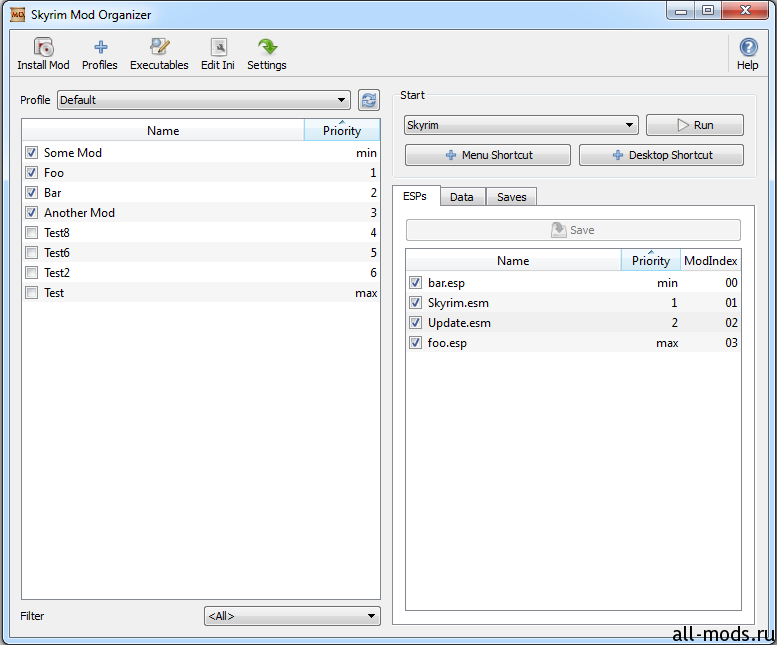
Установка: Запустите инсталлер
Ребят у меня почемуто не работают моды, и фолыч вылетает(, может я что-то не так делаю?
Ставь их через нексус. По мне так он лучше.
нексус ругается на вирусы(
Нексус не антивирус, он не могет ругаться на вирусы.
мне антивирус ругается на вирус в нексусе
Качай с оф. сайта. Он там в свободном доступе.
спасибо за совет, я уже это сделал, только долго разбирался как аккаунт создать 
Работает но есть глюки жду хорошего обновления что бы работал как в скае.Да и спасибо!
Что лутчше «mod organize?» или «установщик модов?»