
Frosty Tools not loading Mods
Given the new release of Frosty Tools I decided to fully make the migration from the old toolset. After a clean install of the game, Frosty and the mods I wanted, I launched the game. but no mods actually loaded in.
Can someone walk me through installation again, see what I might have missed? I did mod Andromeda plenty, so at least I’m familiar with this.
Faithful Kobold Companion
Yeah, I read those. I went over the DAI modding Discord and I’m asking for help there. I’ll post here if I manage to fix it. Thank you!
Could you post your solution?
Yeah, I read those. I went over the DAI modding Discord and I’m asking for help there. I’ll post here if I manage to fix it. Thank you!
Would have been really nice if you posted the solution. I’m having the same trouble and this thread is the only thing I can find on the net that touches the issue.
Yeah, I read those. I went over the DAI modding Discord and I’m asking for help there. I’ll post here if I manage to fix it. Thank you!
Would have been really nice if you posted the solution. I’m having the same trouble and this thread is the only thing I can find on the net that touches the issue.
Hi, I am not OP, but I do know some possible causes for frosty mods not loading (but not all, ofc ^^)
Instead, with frosty, you must launch the game via the frosty mod manager every time you want to see your frosty mods in game. So you will want to load your desired DAI mod profile via FMM and the «launch» button should be near the top of the «available» mods column. If you don’t launch the game this way, you will not see your mods. As an addendum, also remember that in addition to importing your mods, you must also hit the «apply mod(s)» button at the bottom, and the right hand column of FMM which reads «applied mods» should list all your applied mods with checkmarks next to them, and those will be the ones that load in game.
Secondly, if you have used the dai tools mod manager in past, you may have a merged mods folder called Patch_ModManagerMerge, which, left as is, will prevent your frosty mods from loading as that folder overrides the merged mods folder that frosty generates.
So if you have used dai tools mod manager previously, it may be worth going to C: > Program Files > Origin Games > Dragon Age Inquisition > Update > Patch_ModManagerMerge and deleting said folder.
If you have made any saved games whilst using the dai tools mod manager in past, you may have trouble trying to load those saves after deleting that folder, as it may throw an error. This error will read something like «this save was made with a higher patch version». You can fix this issue easily by navigating to C: > Program Files > Origin Games > Dragon Age Inquisition > Update > Patch and finding a file called package.mft, you can open this with any text editor you please.
That file should list the patch number which is by default 12, increase this number by 1 and save the file. After this, see if you have a ModData folder, which is the folder that FMM generates when merging mods. If you have said folder, navigate to C: > Program Files > Origin Games > Dragon Age Inquisition > ModData > Update > Patch and there you should have a second package.mft file, edit the number on this file so it matches with the one you first edited, they should have the same number. Now see if your saves load, if they don’t, keep increasing the numbers on those files until they do. Alternatively, instead of manually editing the package.mft for the ModData folder, if you delete your ModData folder and relaunch your game with FMM, it should pick up on the patch number that you entered into the vanilla package.mft file.
Frosty Mod Manager not launching game
(I’ve already posted this to the EA forums and was advised to publish it here too.)
I’ve been using Frosty Mod Manager for Mass Effect Andromeda for some time now and had no problem with it until a few days ago. The game will launch from Origin but not from the Mod Manager, literally nothing comes up even though my task bar says the game is running. I’ve visited every forum I can find on this issue and have tried every solution. This includes:
Just to note, I have Mass Effect Andromeda located in my DATA folder, because my Windows drive it very low on space, but again, this has never been a problem before so I assume that has nothing to do with it. I’m getting pretty frustrated, as these steps have worked for other people but don’t seem to work for me. If anyone can help me, it would be appreciated.
Having the same problem, running on Windows 7 here. Tried every single one of those solutions as well, to no avail. If anyone has a solution that does not involve «bcrypt.dll» (which doesn’t even exist in the latest version of Frosty), running as administrator or taking full control of the folders, since I’ve tried all of those, it would be much appreciated. Just like OP, I can launch the game normally, but if I try to use the Mod Manager it just has a process in the Task Manager, but nothing shows up.
I have the exact same problem of not being able to launch Andromeda through the mod manager!
Game works fine if i launch it through Origin (i.e. Vanilla).
This seems to be a permissions problem. I solved it by installing the game on a non-system drive.
Make sure the game is not pirated, Frosty don’t work with the pirated version.
Make sure the game is not pirated, Frosty don’t work with the pirated version.
It most certainly does work with the pirated version. Or at least it used to when I was playing it few months ago. Now I have the same problem as the OP. Nothing I tried helped. Deleted and re-installed the mod profiles/files/mod-manager, re-installed the game, Launch the game/mod manager as an administrator etc. Even bought the actual game from the Origin store. To no avail. Now I’m stuck with the vanilla game. And to add the insult to injury I seem to have lost/deleted the Mod-manager I used to run the game with and the newer version is no good since the mods are not compatible with it.
It did change. Newer versions of Frosty don’t work with pirated games.
Also, old mods work perfectly fine with newer versions of Frosty. It’s only the other way around you get problems.
Ok, Frosty not working with pirates games. But I have licence version, and Frosty not working with it.
ok. i keep this short cause my English is bad.
After Frosty was told to launch the game it went to the menu page and I was told to hit space. (normal)
Now normally unmodded you just hit resume and play.
In Task Manager it would say MEA was not responding and it took me awhile to realize that Frosty was still launching the game behind the MEA menu.
All I had to do was wait. like 5 mins. and after you see Frosty not loading the mod the MEA menu can be accessed.
It’s funny, but the old versions of FMM 1.03alpha4 inclusive, everything worked for me and it works now. it is a pity that the new versions of the FMM do not work with new mods.
Frosty Mod Manager не запускает игры [Fixes]
Менеджеру мод Frosty не удается запустить игру из-за приложений безопасности, конфликтующих файлов / папок, отсутствия доступа администратора и поврежденных установок игры. Случаи проблемы также видны, когда файлы Frosty не разархивированы должным образом или вы пытаетесь добавить несколько модов одновременно.
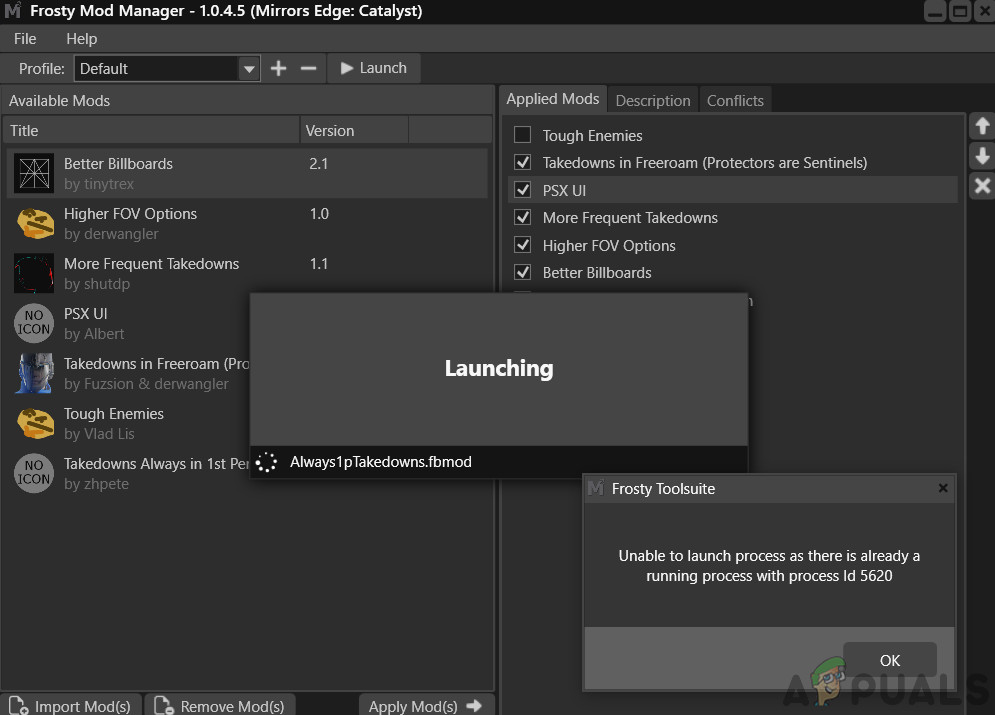
Прежде чем приступить к устранению неполадок, удалите все моды, кроме одного, и продолжайте. Когда вы решили проблему, добавьте один мод за раз, чтобы определить, был ли конкретный мод также частью проблемы. Кроме того, убедитесь, что у вас есть доступ администратора к системе.
Кроме того, теперь запустите игру без модов и даже тогда, если игра не может быть запущена, вы должны найти проблему с игрой и решить ее. Если игра была успешно запущена без модов, попробуйте решения ниже.
Решение 1: настройка с разрешениями
Эта проблема может возникнуть, если Frosty Mod Manager не может получить доступ к определенным файлам и службам из-за ошибок разрешения, которые необходимы для правильной работы Frosty Mod Manager. Решение этой проблемы может дать администратору Frosty Mod Manager доступ к необходимым файлам и службам.
Кроме того, убедитесь, что у вас есть полный контроль над игровой платформой цифрового распространения и папкой с игрой, например, владение ею. если вы используете Origin, то получите полный контроль над игрой в Origin и Origin.
Получив право владения и полный контроль, запустите Frosty Mod Manager и посмотрите, решена ли проблема. Если нет, попробуйте следующее решение. Но имейте в виду, что во время устранения неполадок всякий раз, когда вам нужно запустить Frosty Mod Manager, запускайте его от имени администратора.
Решение 2. Используйте утилиту сжатия
Некоторые моды заархивированы, и эти заархивированные почтовые индексы могут иногда быть проблематичными, если приложения разархивирования и разархивирования отличаются из-за неправильных заголовков. Если вы используете какой-либо заархивированный мод, то либо используйте Менеджер мод Frosty без этого мода, либо используйте любое другое приложение для разархивирования, кроме стандартного приложения Windows.
Скачайте и установите любую утилиту сжатия.
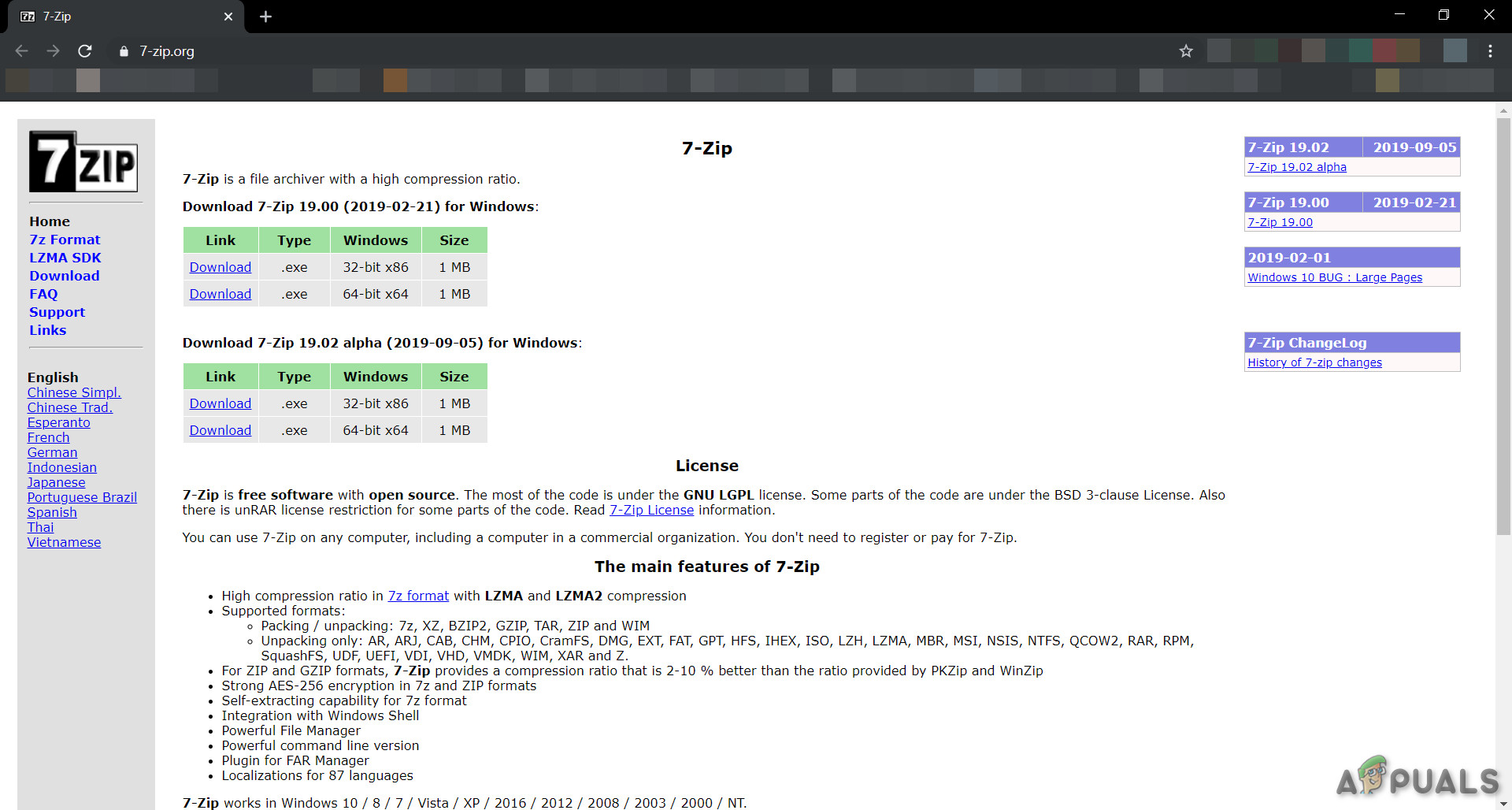
7-Zip a Compression Utility. После разархивирования мода скопируйте его в нужное место и запустите Frosty Mod Manager, чтобы увидеть, решена ли проблема. Если нет, переходите к следующему решению.
Решение 3. Использование в безопасном режиме
Безопасный режим в Windows 10 загружается с минимальным набором сервисов / драйверов / приложений. Если Frosty Mod Manager не может запустить игру из-за какой-либо конфликтующей службы / драйвера / приложения, то загрузка системы в безопасном режиме и запуск Frosty Mod Manager могут решить проблему.
Теперь, если Frosty Mod Manager может запустить игру, очистите систему и попробуйте определить проблемные службы / драйверы / приложения, конфликтующие с Frosty Mod Manager.
И если Frosty Mod Manager не может запустить игру даже в безопасном режиме, переходите к следующему решению.
Если Frosty Mod Manager не может запустить игру, перейдите к следующему решению.
Решение 5. Переместите файлы игры на системный диск
Frosty Mod Manager не поддерживает игровые файлы на несистемном диске, и если вы используете игру с файлами на несистемном диске, то это может быть причиной того, что Frosty Mod Manager не запускает игру. Чтобы решить эту проблему, следуйте инструкциям ниже.
Решение 6. Отключите антивирус и брандмауэр
Существуют известные проблемы между файлами, относящимися к игре, которые определяются антивирусом / брандмауэром / программным обеспечением как вредоносное ПО (этот термин называется ложноположительным) и блокируют его доступ, что может привести к тому, что менеджеры игр / модов будут вести себя внезапно. Frosty Mod Manager не является исключением, поэтому отключение Антивируса и Брандмауэра может решить проблему.
Запустите Frosty Mod Manager и игру, чтобы увидеть, решена ли проблема, если нет, перейдите к следующему решению.
Решение 7. Удалите проблемные файлы / папки
Если неправильная конфигурация вынуждает проблему, что Frosty Mod Manager не запускает игру, то удаление файлов и папок, связанных с этой неправильной конфигурацией, может решить проблему.
Предупреждение: Скачивайте файл на свой страх и риск, так как мы никак не связаны с хостами этих файлов.
Решение 8. Переустановите Frosty
Если до сих пор у вас ничего не получалось, тогда давайте перейдем к последнему средству и переустановим Frosty, чтобы все исправить. Кроме того, существует известная проблема с Frosty Mod Manager, которая заключается в том, что когда игра закрывается с помощью диспетчера задач, она не начнет нормально функционировать, пока не будет переустановлена.
Надеюсь, вы решили проблему и теперь можете без проблем запустить игру.
Solve: Frosty Mod Manager Not Launching Game (2021 Updated) [MiniTool Tips]
By Amanda | Follow | Last Updated June 01, 2021
Summary :
Have you ever encountered Frosty Mod Manager not launching game issue? What can you do if you come across the problem unfortunately? Don’t worry. In order to help you fix the issue, MiniTool Software analyzes the potential reasons and lists some feasible solutions in this post.
Quick Navigation :
About Frosty Mod Manager Not Launching Game Issue
If you are a game lover, you should have heard about or used a mod in video games. What is mod? A mod is an alteration made by players or fans of a video game that changes one or more aspects of a video game. Mods are very popular among video game players. Some players can become fans of specific mods, and others would like to make mods by themselves.
Frosty Mod Manager, a video game utility program, is designed to help users organize and manage mods for their various games. Actually, this program is not only a mod manager but also a mod editor that allows players to make their own mods and apply them to their games.
Frosty Mod Manager works for games which are running on Frostbite game engine developed by DICE. It supports games including Mass Effect: Andromeda, Mirrors Edge: Catalyst, Dragon Age: Inquisition, FIFA 17, and etc.
Unfortunately, some issues have reported with this utility and one of them is Frosty Mod Manager not launching game. There are some common reasons for Frosty Mod Manager not working to launch games:
If your Frosty Mod Manager won’t open games, you should firstly remove all the mods and then add them one by one to check if the issue is caused by a certain mod. If you cannot fix the problem in this way, you can start your troubleshooting with the following solutions.
How to Fix Frosty Mod Manager Not Launching Game
Fix 1: Run Frosty Mod Manager as Administrator
If Frosty Mod Manager is not granted with administrative permission to access certain files or services, it might fail to launch your games or work properly. To fix the problem in this case, you just need to run your Frosty Mod Manager as administrator.
Step 1: Find the executable file of the game (commonly FrostyModManager.exe), right-click it and choose Properties.
Step 2: Switch to Compatibility tab, check Run this program as an administrator option, and click Apply and OK to save changes.
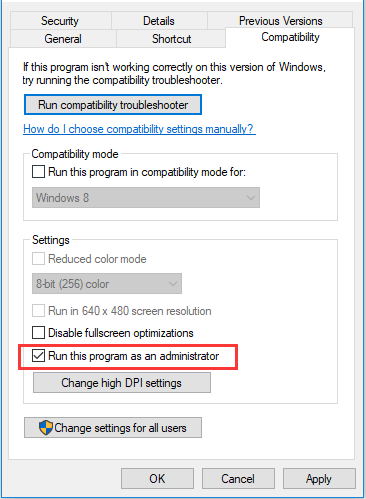
Step 3: In this way, the program will run with administrative privilege every time you launch it. You just need to launch your Frosty Mod Manager to check if the problem is fixed.
Now, you can launch your Frosty Mod Manager and check if it can launch your games and work properly.
Fix 3: Temporarily Disable Your Antivirus and Firewall
According to the reports, the Frosty Mod Manager not launching issue could be caused by your antivirus and firewall. Sometimes, the antivirus and firewall may mistakenly regard some game-related files as viruses or malware and block its access, causing the game or the mod manager malfunctioning.
Therefore, it might be helpful to disable your antivirus and firewall temporarily. Disable all your installed antivirus programs at first. If you are using the built-in Windows Defender antivirus, you should also disable it and here’re the steps.
Step 1: Press Windows + I to open Settings.
Step 2: Go to Update & Security > Windows Security and click Virus & threat protection in the right pane.
Step 3: Click Virus & threat protection Settings.
Step 4: In Real-time protection section, toggle off the switch button to disable the feature.

If Frosty Mod Manager are able to launching games after you disable a certain antivirus application, you can keep it disabled, or remove it and try another reliable one. If you are sure that your antivirus is not the culprit, then you can re-enable antivirus and try disabling firewall following the steps below.
Step 1: Type control panel in the Search bar and click the best match result to open it.
Step 2: Choose System and Security > Windows Defender Firewall and click Turn Windows Defender Firewall on or off.
Step 3: Check Turn off Windows Defender Firewall option for both private and public network settings. Click OK to save changes and exit the window.

Now, you can launch your Frosty Mod Manager again. If it works properly now, you can turn on Windows Defender firewall and allow the program through the firewall. If Frosty Mod Manger won’t open games still, just continue with the next solution.
Fix 4: Clean Boot Your Computer
It is possible that a certain application or service is conflicting with your Frosty Mod Manager and thus make it not working and not launching games. The best way to fix the issue in this case is to Clean Boot your computer. Here’s a simple guide for you.
Step 1: Press Windows + R, input msconfig and click OK button to open System Configuration.
Step 2: Click the Services tab, check Hide all Microsoft services and click Disable all button to disable all non-Microsoft services.

Step 3: Switch to the Startup tab and click Open Task Manager. In the new window, disable all the listed programs by selecting them and hitting Disable button.
Step 4: Back to the System Configuration Window, click Apply and OK to save changes and exit the dialog.
Once it’s done, restart your computer and run Frosty Mod Manager as administrator to check if the problem disappears. If it can work properly now, you can enable the applications and services disabled just now one by one to figure out the problematic one. Then, you can choose to disable or uninstall it. If this method fails to work, just move on to the next one.
Fix 5: Move the Game Files to Your System Drive
It is said that Frosty Mod Manager doesn’t support games that have files saved on the non-system drive. And some players have successfully resolved Frosty Mod Manager not launching game issue by transferring game files to the system drive (commonly C drive).
Hence, if you store the files of a game on a non-system drive and the game cannot be launched by your mod manager, you can try moving the game files to your C drive. To do that, you can directly copy the files and paste them to the system drive, or uninstall the game and reinstall it on the C drive. If you are using Steam, click here to get more methods.
This is an effective method, but some users complain that there is not enough space on the system drive to save a large number of game files. If you are in such dilemma, you might need to enlarge the size of your system drive.
MiniTool Partition Wizard, a professional disk/partition manager, could be a great assistant for you. It provides the Extend Partition feature to help you increase the capacity of a certain drive by taking free space from other partitions on the same disk.
As you are performing the operation for the system drive, you need to use a paid. Just download the program and register to the Pro Ultimate edition. Then, follow the steps below to extend your system partition.
Step 2: Boot your computer from the bootable media by changing the boot order in BIOS.
Step 3: When you get the MiniTool PE Loader interface, the program will launch automatically. If not, click MiniTool Partition Wizard to enter the main interface.
Step 4: Right-click your system partition and choose Extend from the context menu. Alternatively, you can keep the partition selected and choose Extend Partition feature from the left pane.

Step 5: Choose a partition from the drop-down menu of Take Free Space from and drag the slider leftwards or rightwards to determine the size of space to be taken for the system drive. Then, click OK to confirm.
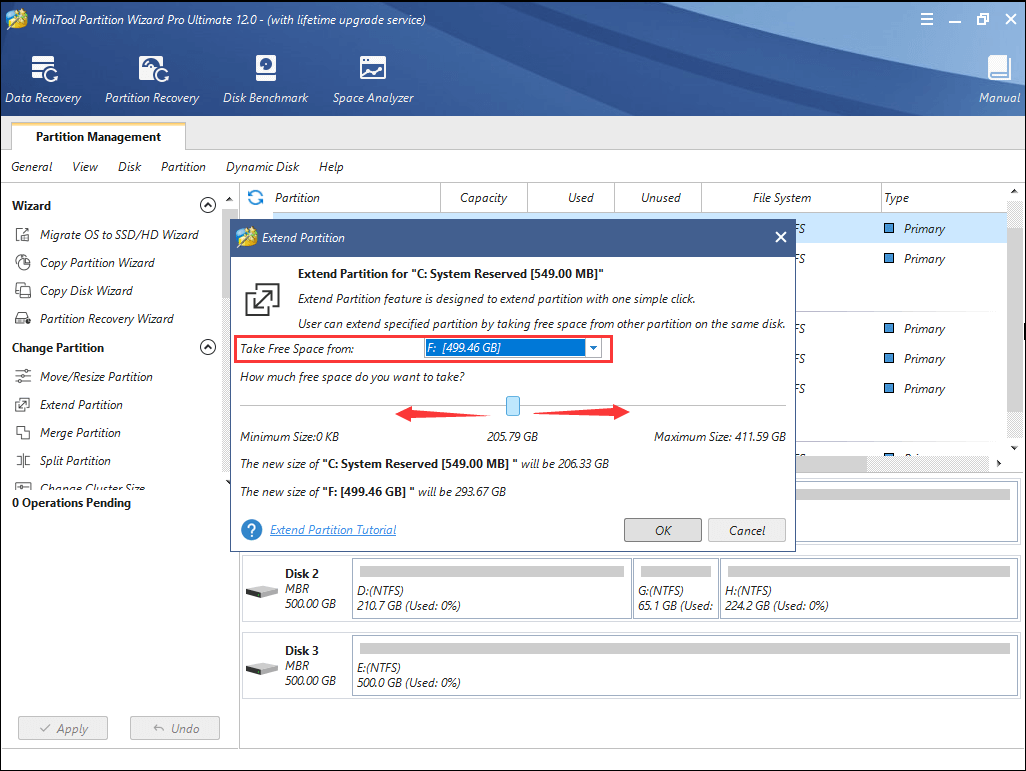
Step 6: Click Apply button to execute the operation.
Fix 6: Remove Certain Files
The problem that Frosty Mod Manager won’t open games could also be caused by wrong configurations. In this case, you just need to delete certain files or folders related to the wrong configurations. This method is shared by users on the forum and you can follow the steps below.
Step 1: Go to the storage directory of the problematic game.
Step 2: Delete the bcrypt.dll file and ModData folder of the game.
Step 3: Locate the installation folder of Frosty Mod Manager. Go to the path Frosty Tool Suite\FrostyModManager\ThirdParty and delete bcrypt.dll file under the ThirdParty folder.
Step 4: Reboot your computer. Download the bcrypt.dll file from a reliable website and place it in the original paths mentioned above.
After that, you can launch Frosty Mod Manager as administrator and check if it can launch your game properly.
Fix 7: Reinstall Frosty Mod Manager
If all the above methods fail to resolve this issue for you, perhaps there are some problem with the installation files of Frosty Mod Manager and you have to reinstall it.
Just end its related processes and uninstall the program from your computer completely. Then, download the latest version of Frosty Mod Manager from the official website and install it with the given instructions. After reinstalling it, grant it with administrative privileges and hopefully the Frosty Mod Manager not launching game issue will be resolved.
Bottom Line
Frosty Mod Manager is a great assistant for game lovers to manage or edit their mods. But sometimes, it might fail to launch games for certain reasons. This post has introduced 7 solutions to this issue and hope you can benefit from it.
Frosty Mod Manager Not Launching FAQ
To uninstall Frosty Mod Manager from your computer, you just need to:
ABOUT THE AUTHOR

Position: Columnist
Amanda has been working as English editor for the MiniTool team since she was graduated from university. She enjoys sharing effective solutions and her own experience to help readers fix various issues with computers, dedicated to make their tech life easier and more enjoyable.
She has published many articles, covering fields of data recovery, partition management, disk backup, and etc. In order to provide more useful tips and information, she is still committed to expand her technical knowledge.