
Visual Studio Code on Windows
Installation
Alternatively, you can also download a Zip archive, extract it and run Code from there.
User setup versus system setup
VS Code provides both Windows user and system level setups. Installing the user setup does not require Administrator privileges as the location will be under your user Local AppData (LOCALAPPDATA) folder. User setup also provides a smoother background update experience.
The system setup requires elevation to Administrator privileges and will place the installation under Program Files. This also means that VS Code will be available to all users in the system.
See the Download Visual Studio Code page for a complete list of available installation options.
32-bit versions
If you need to run a 32-bit version of VS Code, both a 32-bit Installer and Zip archive are available.
Updates
VS Code ships monthly releases and supports auto-update when a new release is available. If you’re prompted by VS Code, accept the newest update and it will be installed (you won’t need to do anything else to get the latest bits).
Note: You can disable auto-update if you prefer to update VS Code on your own schedule.
Windows Subsystem for Linux
Windows is a popular operating system and it can be a great cross-platform development environment. This section describes cross-platform features such as the Windows Subsystem for Linux (WSL) and the new Windows Terminal.
Recent Windows build
Make sure you are on a recent Windows 10 build. Check Settings > Windows Update to see if you are up-to-date.
Windows as a developer machine
With WSL, you can install and run Linux distributions on Windows. This enables you to develop and test your source code on Linux while still working locally on your Windows machine.
See the Developing in WSL documentation to learn more or try the Working in WSL introductory tutorial.
New Windows Terminal
Available from the Microsoft Store, the Windows Terminal (Preview) lets you easily open PowerShell, Command Prompt, and WSL terminals in a multiple tab shell.
Next steps
Once you have installed VS Code, these topics will help you learn more about VS Code:
Common questions
What command-line arguments are supported by the Windows Setup?
VS Code uses Inno Setup to create its setup package for Windows. Thus, all the Inno Setup command-line switches are available for use.
Scrolling is laggy and not smooth
On certain devices, editor scrolling is not smooth but laggy for an unpleasant experience. If you notice this issue, make sure you install the Windows 10 October 2018 update where this issue is fixed.
I’m having trouble with the installer
Try using the zip file instead of the installer. To use this, unzip VS Code in your AppData\Local\Programs folder.
Note: When VS Code is installed via a Zip file, you will need to manually update it for each release.
Icons are missing
I installed Visual Studio Code on my Windows 7 or 8 machine. Why are some icons not appearing in the workbench and editor?
Using the Command Prompt:
Using the Registry Editor (regedit):
Как настроить Visual Studio Code для C, C++, Java, Python

May 26, 2020 · 6 min read

Visual Studio Code — популярный редактор кода, бесплатный и с открытым исходным кодом. Но я уверен: каждый из нас, кто пытался настроить Visual Studio Code для разработки приложений на C++, Java или Python, прошел через стадию: “О Боже! Почему нельзя как-нибудь попроще?” Я сам пробовал настроить VS Code пару раз и в итоге закончил тем, что использовал CodeBlocks. 🙁
Прочитав много документации, посмотрев ряд роликов на YouTube и потратив несколько дней на саму настройку VS Code, я пишу эту статью, чтобы все это не пришлось проделывать уже вам!
Сегодня я по к ажу, как настроить среду разработки для спортивного программирования на C++, Java и Python в VS Code с нуля. Мы также посмотрим, какие расширения больше всего пригодятся, чтобы начать работу с VS Code. В конечном счете, ваша среда разработки будет выглядеть примерно так:

1. Устанавливаем Visual Studio Code
Скачайте последнюю версию Visual Studio Code с официального сайта. Рекомендуется загрузить системный установщик ( System Installer), но если у вас нет прав администратора, то пользовательский установщик ( User Installer) тоже подойдет. Выполните все обычные шаги по установке и обязательно проставьте все следующие чекбоксы:

Если у вас уже установлен VS Code, но вы все равно хотите начать с чистого листа, следуйте этим инструкциям, чтобы полностью удалить VS Code.
2. Настраиваем расширения
Ниже приведен список расширений, которые нам понадобятся для правильной настройки VS Code. Откройте VS Code и перейдите на панель расширений ( Ctrl + Shift + X), которая находится на левой панели инструментов, и начните загружать друг за другом следующие расширения:
Расширения, перечисленные ниже, необязательны для дальнейшей настройки, но я рекомендую вам обратить на них внимание, посмотреть, заинтересуют ли они вас, и если нет, то перейти к следующему разделу.
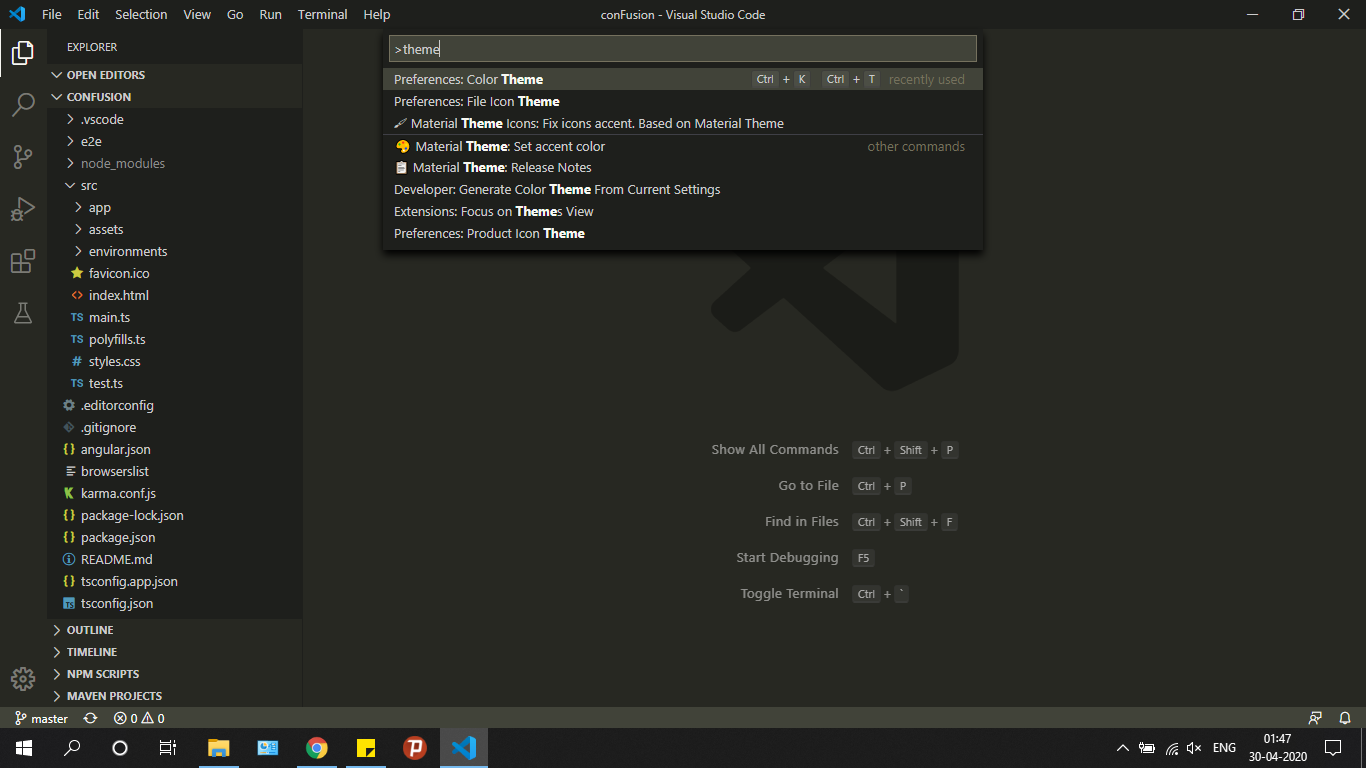
Чтобы выбрать тему, нажмите Ctrl + Shift + P. Откроется палитра команд. Осуществите поиск по слову “ theme” и выберите опцию Color Theme. Чтобы настроить иконки, можете выбрать опцию File Icon Theme.
Расширения для тех, кто интересуется FrontEnd-фреймворками для веб-разработки, такими как Angular и React:
3. Настраиваем внешний вид редактора
Итак, мы уже установили VS Code и несколько расширений. Теперь мы готовы настраивать среду разработки. Я создал шаблон для спортивного программирования в VS Code и загрузил его в свой профиль на Github.
Перейдите по этой ссылке и загрузите шаблон себе на компьютер. Распакуйте его в любое место по вашему выбору. После этого откройте получившуюся папку в VS Code. Вы должны увидеть что-то вроде этого:
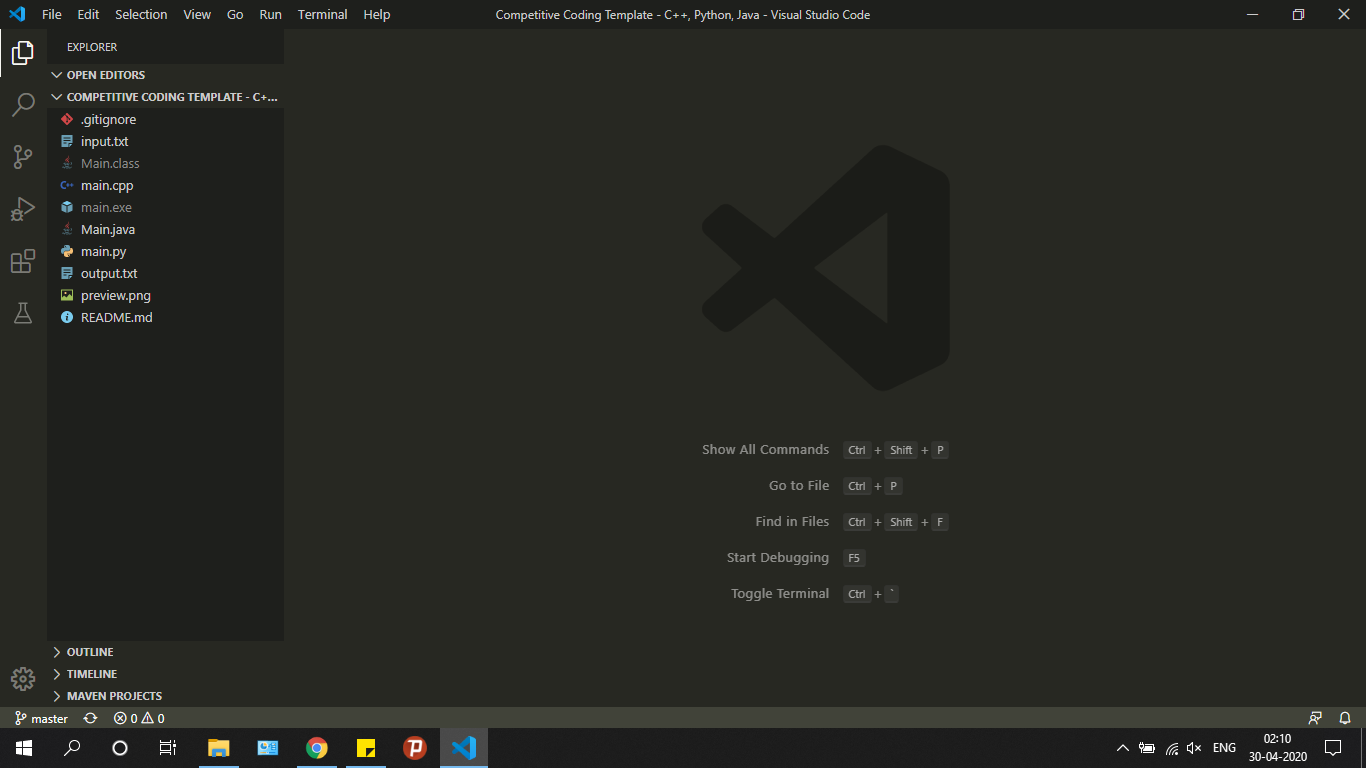
Пройдитесь по файлам main.cpp, Main.java и main.py и посмотрите на записанный в них образец кода. По сути, шаблонный код, предоставленный в образцах для каждого из этих трех языков, принимает входящие данные из файла input.txt и обеспечивает вывод в файл output.txt. Для каждой программистской задачи, которую вы хотите решить, просто создайте копию этого шаблона и напишите свой код в функции solve().
Теперь создадим ту разбивку экрана, которую вы могли видеть на самом первом изображении в этой статье. Эта разбивка позволяет сразу видеть как ввод, так и вывод вашего кода, что делает ее очень удобной в использовании.
Must-have плагины и несколько полезностей для С\С++ разработки в VS Code

Удивительно, но до сих пор на Хабре нет хорошей подборки плагинов для Visual Studio Code для тех, кто пишет на С/С++. Microsoft в своем блоге опубликовали только статью, совсем базового уровня с инструкцией по настройке. Но большинство читателей Хабра, тем более из разработчиков, обойдется без такой подробной инструкции. Есть только несколько подборок для веб-разработчиков, но не для С++.
Наверное это связано с тем, что большинство С++ разработчиков использует тяжеловесные IDE, в первую очередь конечно же Visual Studio.
Но в Linux и MacOS с полноценными IDE всё не так просто, да и тяжелая среда разработки не всегда нужна или просто не хочется ее использовать.
Я же хочу обратить ваше внимание на полезные плагины, которые облегчают жизнь и работу, а также рассказать про полезные настройки и особенности VS Code, которые вы могли просто упустить.
Вопрос считать VS Code IDE или только редактором кода весьма холиварный и не является целью этой статьи. Я буду всё-таки считать её IDE, так как минимальными усилиями она предлагает основные сценарии IDE, такие как автодополнение и отладка.
Немного истории
Первая IDE, которую я использовал начиная свой путь разработчиком была, уже историческая, Borland C++ 2.0. Потом я пересел на Visual Studio 6.0 и оставался (да и сейчас остаюсь) фанатом этой IDE. Но в какой-то момент возникла необходимость писать под Linux (это был, наверное, 2006 год). В Linux, первое время, я был шоке от отсутствия серьезных IDE — пробовал Eclipse, мучился и плевался. Не буду вдаваться в историю, но в итоге я разобрался с Make, CMake, научился быстро писать соответствующие файлы, потом были линкер скрипты, gdb, kdb и много всего интересного. В это время я полюбил и активно использовал vim на протяжении лет 5. После чего постепенно переключился на Sublime Text, затем на его вторую версию, а сейчас уже на третью.
Теперь я уже меньше пишу кода, и больше занимаюсь развитием продуктов и процессов, но периодически писать все же приходится — это и личные проекты и помощь нашим партнерам со встраиванием нашего SDK.
А так как SDK у нас не только для Windows, но и для Linux и MacOS, то и код приходится писать в них. В прошлом году я попробовал VS Code, и он стал для меня хорошей альтернативой Sublime Text.
Если коротко их сравнить, то Sublime Text, на мой личный взгляд, даёт больше возможностей по настройке и по работе, но VS Code больше даёт из коробки. И если под рукой нет личной подборки расширений для Sublime Text или если вы вообще никогда этим редактором не пользовались, то Visual Studio Code —отличная штука.
Начну с нескольких очень полезных расширений. Их для С\С++ разработчика в VS Code не так много и главный из них это конечно:
C/C++ for Visual Studio Code
Ссылка на marketplace
Это основное расширения для поддержки С\С++ в VS Code, которое разрабатывается Microsoft. Подробное описание всего, что оно даёт есть на странице в маркете, я же здесь упомяну только самое главное (на мой взгляд конечно):
Надо отметить, что Microsoft большие молодцы и постоянно обновляют это расширение. Причем новые возможности этого расширения публикуются только в dev блоге от Microsoft и не очень заметны. Поэтому я решил рассказать тут о самых новых из них.
Глобальные настройки для IntelliSense
В мае 2018 в VS Code добавили возможность задать любые параметры для IntelliSense в пользовательском settings.json. Эти настройки автоматически применяются ко всем проектам.
Очень полезная штука когда большинство проектов, с которыми вы работаете используют общий набор include, одинаковый компилятор и так далее.
Поддержка встроенного терминала при отладке
В декабре 2018 года Microsoft добавила возможность по отладке С\С++ приложений во встроенном терминале, вместо открытия отдельного окна с терминалом. Управляется эта возможность параметром externalConsole в launch.json.
Пока поддерживается только cppdbg и только на Linux и Windows, но в MacOS тоже обещали завезти в скором времени. Выглядит это так:
Комментарии для документирования
Эту штуку добавили буквально в прошлом месяце. Рассказывать тут особо нечего, поэтому просто приведу пример от Microsoft.
Пишем простой класс Box и добавляем комментарии в стандартном формате:
Комментарий ассоциируется с классами или функциями членам класса и показываются во всплывающих подсказках при наведении на соответствующий объект.
Работа с контейнерами
В последнем обновлении от 6 февраля Microsoft добавила работу с С++ в Docker контейнерах. Теперь вы можете не только собирать код в контейнерах, но и отлаживать его внутри контейнеров. Подробности — в блоге Microsoft.
Сам я контейнерами по работе не пользуюсь — нет необходимости. Но наверняка это многим будет полезно, поэтому я и решил включить это в статью.
Ну а теперь возвращаемся к другим расширениям для VS Code, которые помогут вам при разработке.
cquery
Ещё один достаточно глобальный плагин для С/С++/Objective-C разработчика в VS Code. Основная особенность — расширение было спроектировано и протестировано на очень больших проектах, например, на Chromium. Поэтому пригодится там, где стандартное расширение от Microsoft и его IntelliSense пасует (такое часто случает когда у вас больше 100Мб С++ исходников).
Список всех основных возможностей такой:
Расширение весьма полезное, но на github нет активности с ноября 2018 года. И судя по issue — Is this project dead? #867 проект действительно остановился в развитии. Знамя подхватил форк https://github.com/MaskRay/ccls, но я его пока не проверял, поэтому рекомендовать не могу. Скорее всего ccls со временем просто заменит cquery.
Easy C++ projects
Если два предыдущих расширения были глобальные с большим количеством возможностей, то это выполняет простую функцию — создание простого проекта для MSVC, GCC или Clang.
Дополнительно умеет:
CMake Tools
Как очевидно из названия, расширение добавляет поддержку CMake. Как подсказали в комментариях, можно конечно все прописывать руками, но с расширением будет удобнее.
После установки надо будет сделать минимальную настройку. Выбрать toolchain:
После чего выбрать конфигурацию для сборки:
И все. Можно работать.
Расширение также умеет само генерировать для проектов простейшие CMake файлы.
Todo Tree
Расширений для создания TODO списков для VS Code несколько. Вы можете выбирать любое. Мне больше всего понравилось именно это. Единственный недостаток — оно требует https://github.com/BurntSushi/ripgrep, который не везде есть из коробки и ставится не очень удобно. В стандартных репозиториях Debian его пока нет.
Результат работы выглядит так:
GitLens
Как следует из названия расширения — оно улучшает работу с git. Надо отметить, что по-умолчанию в VS Code уже встроена некоторая поддержка git, но весьма ограниченная.
Основная фишка GitLens — показ прямо в редактируемой строке кто и в каком коммите менял её последний раз. Расширение также добавляет расширенный поиск по истории файла, поиск по коммитам, удобный вид для сравнения нескольких версий файла и многое другое. Для демонстрации работы я просто вставлю gif со страницы marketа, который наглядно показывает возможности расширения.
Git History
Ещё одно расширение улучшающее работу с git, а именно показ истории. Почему в GitLens мне так и не удалось найти подходящее отображении истории проекта со всеми ветками. Если кто-то знает, как подобный вид (см. ниже) сделать с помощью GitLens обязательно напишите в комментариях, буду очень благодарен.
vscode-icons
Одно из многочисленных расширений, которое добавляет иконки для файлов и каталогов в Explorer панель. Расширений таких в маркете масса, а это является самым популярным. Можете смело выбирать любое другое, мне понравились именно эти иконки.
Settings Sync
Ещё одно полезное расширение, назначение которого очевидно из названия.
Для синхронизации ваших настроек используется GitHub account token и Gist. Лично для меня — одно из самых полезных расширений, так как я использую и Windows, и Linux, и Mac.
Code Spell Checker
Если ваш английский пока далек от идеала или вы хотите предотвратить опечатки, то это расширение определенно не будет лишним. При необходимости можно добавить поддержку русского языка.
Из приятных особенностей — не только подчеркивает ошибочные слова, но и предлагает корректные варианты.
WakaTime
ссылка на marketplace
WakaTime — это сервис, который показывает красивую статистику\графики\метрики по вашему программированию. Штука исключительно эстетическая, но мне очень нравится. Расширение соответственно добавляет поддержку сервиса при работе в VSCode. Про сам сервис можно почитать тут.
Пример красивых графиков:
Основные возможности сервиса бесплатные и подписки не требуют.
На этом с расширениями всё. Хочется также поделится несколькими полезными настройками самого VS Code, которые могут быть полезны сообществу.
Несколько полезных настроек
По умолчанию VSCode отправляет телеметрию при падении, а также некоторые данные и информацию об ошибках в Microsoft. Если вас по каким-то причинам это не устраивает, то смело отключайте в настройках:
Следующую настройку я сам обнаружил только при написании статьи. ZenMode позволяет вам скрыть все лишние окна и меню и оставить только текущий файл с кодом. Теперь буду постоянно пользоваться на планшете, когда приходится что-то пробовать в коде. На планшете остальные окна часто не нужны, а полезного пространства очень не хватает. Рекомендую!
Configure VS Code for Microsoft C++
In this tutorial, you configure Visual Studio Code to use the Microsoft Visual C++ compiler and debugger on Windows.
After configuring VS Code, you will compile and debug a simple Hello World program in VS Code. This tutorial does not teach you details about the Microsoft C++ toolset or the C++ language. For those subjects, there are many good resources available on the Web.
If you have any problems, feel free to file an issue for this tutorial in the VS Code documentation repository.
Prerequisites
To successfully complete this tutorial, you must do the following:
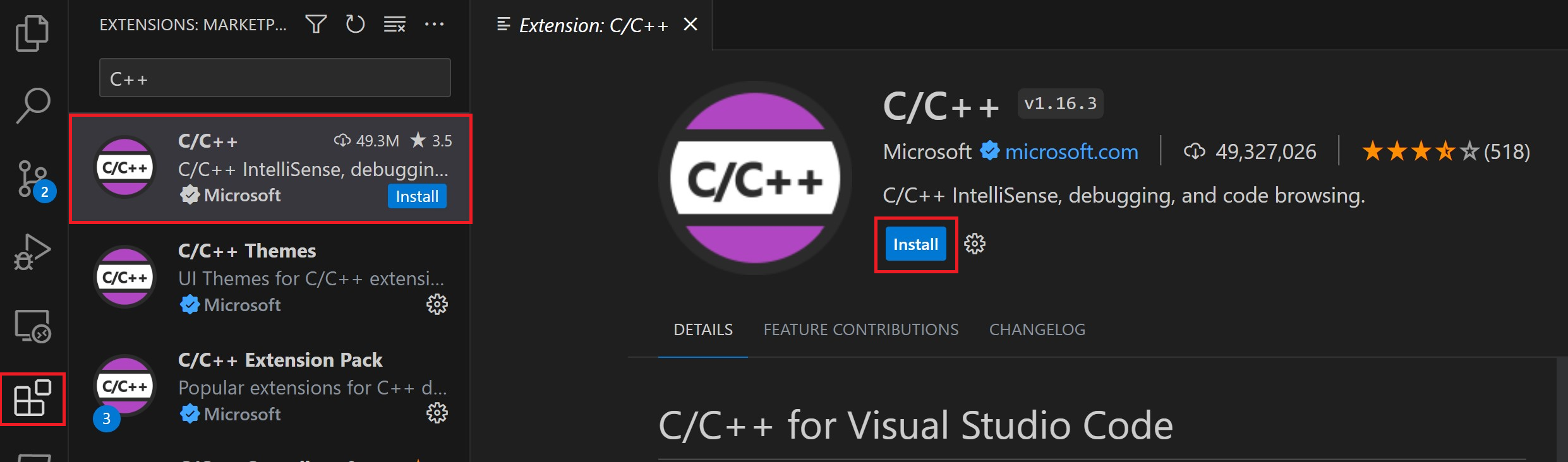
Install the C/C++ extension for VS Code. You can install the C/C++ extension by searching for ‘c++’ in the Extensions view ( ⇧⌘X (Windows, Linux Ctrl+Shift+X ) ).
Install the Microsoft Visual C++ (MSVC) compiler toolset.
If you have a recent version of Visual Studio, open the Visual Studio Installer from the Windows Start menu and verify that the C++ workload is checked. If it’s not installed, then check the box and select the Modify button in the installer.
You can also install the Desktop development with C++ workload without a full Visual Studio IDE installation. From the Visual Studio Downloads page, scroll down until you see Tools for Visual Studio 2019 under the All Downloads section and select the download for Build Tools for Visual Studio 2019.

This will launch the Visual Studio Installer, which will bring up a dialog showing the available Visual Studio Build Tools workloads. Check the Desktop development with C++ workload and select Install.

Note: You can use the C++ toolset from Visual Studio Build Tools along with Visual Studio Code to compile, build, and verify any C++ codebase as long as you also have a valid Visual Studio license (either Community, Pro, or Enterprise) that you are actively using to develop that C++ codebase.
Check your Microsoft Visual C++ installation
To use MSVC from a command line or VS Code, you must run from a Developer Command Prompt for Visual Studio. An ordinary shell such as PowerShell, Bash, or the Windows command prompt does not have the necessary path environment variables set.
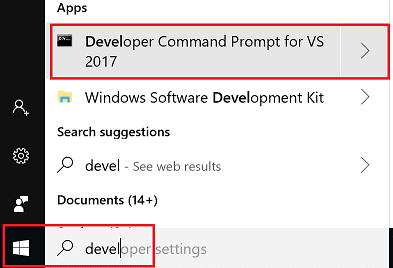
To open the Developer Command Prompt for VS, start typing ‘developer’ in the Windows Start menu, and you should see it appear in the list of suggestions. The exact name depends on which version of Visual Studio or the Visual Studio Build Tools you have installed. Select the item to open the prompt.
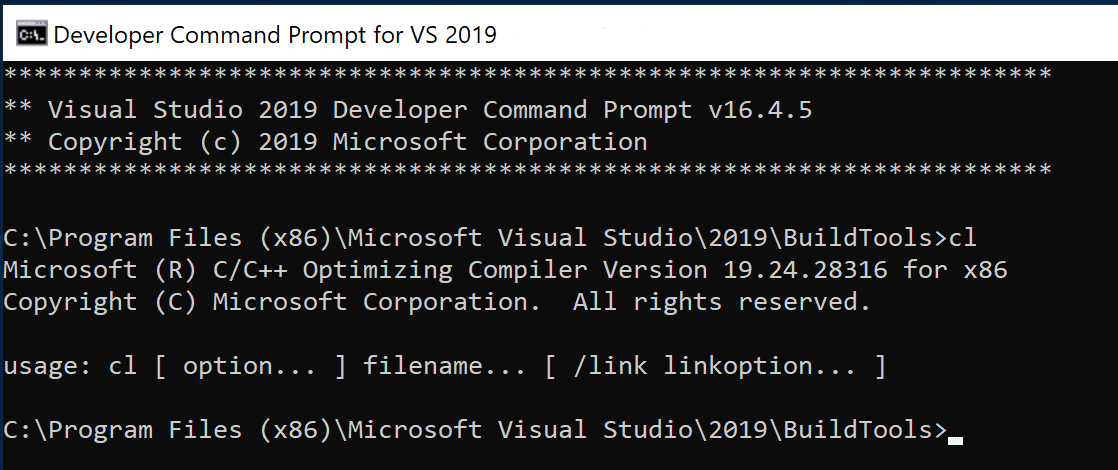
If the Developer Command Prompt is using the BuildTools location as the starting directory (you wouldn’t want to put projects there), navigate to your user folder ( C:\users\
Note: If for some reason you can’t run VS Code from a Developer Command Prompt, you can find a workaround for building C++ projects with VS Code in Run VS Code outside a Developer Command Prompt.
Create Hello World
Add a source code file
Add hello world source code
Now paste in this source code:
Now press ⌘S (Windows, Linux Ctrl+S ) to save the file. Notice how the file you just added appears in the File Explorer view ( ⇧⌘E (Windows, Linux Ctrl+Shift+E ) ) in the side bar of VS Code:
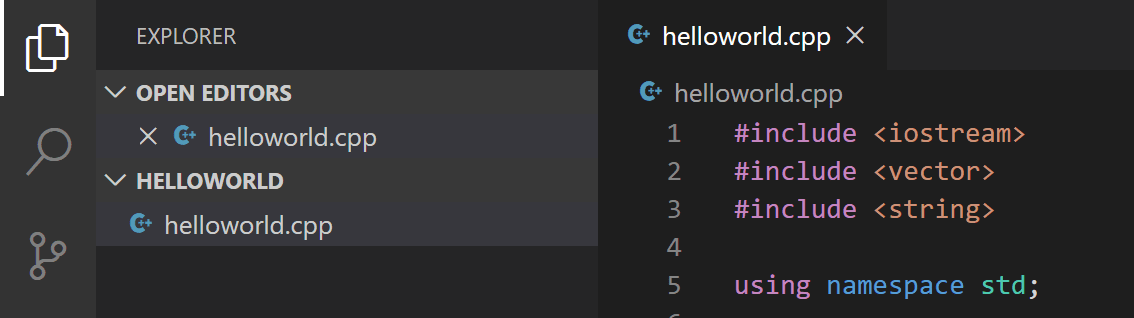
You can also enable Auto Save to automatically save your file changes, by checking Auto Save in the main File menu.
The Activity Bar on the far left lets you open different views such as Search, Source Control, and Run. You’ll look at the Run view later in this tutorial. You can find out more about the other views in the VS Code User Interface documentation.
Note: When you save or open a C++ file, you may see a notification from the C/C++ extension about the availability of an Insiders version, which lets you test new features and fixes. You can ignore this notification by selecting the X (Clear Notification).
Explore IntelliSense
In your new helloworld.cpp file, hover over vector or string to see type information. After the declaration of the msg variable, start typing msg. as you would when calling a member function. You should immediately see a completion list that shows all the member functions, and a window that shows the type information for the msg object:
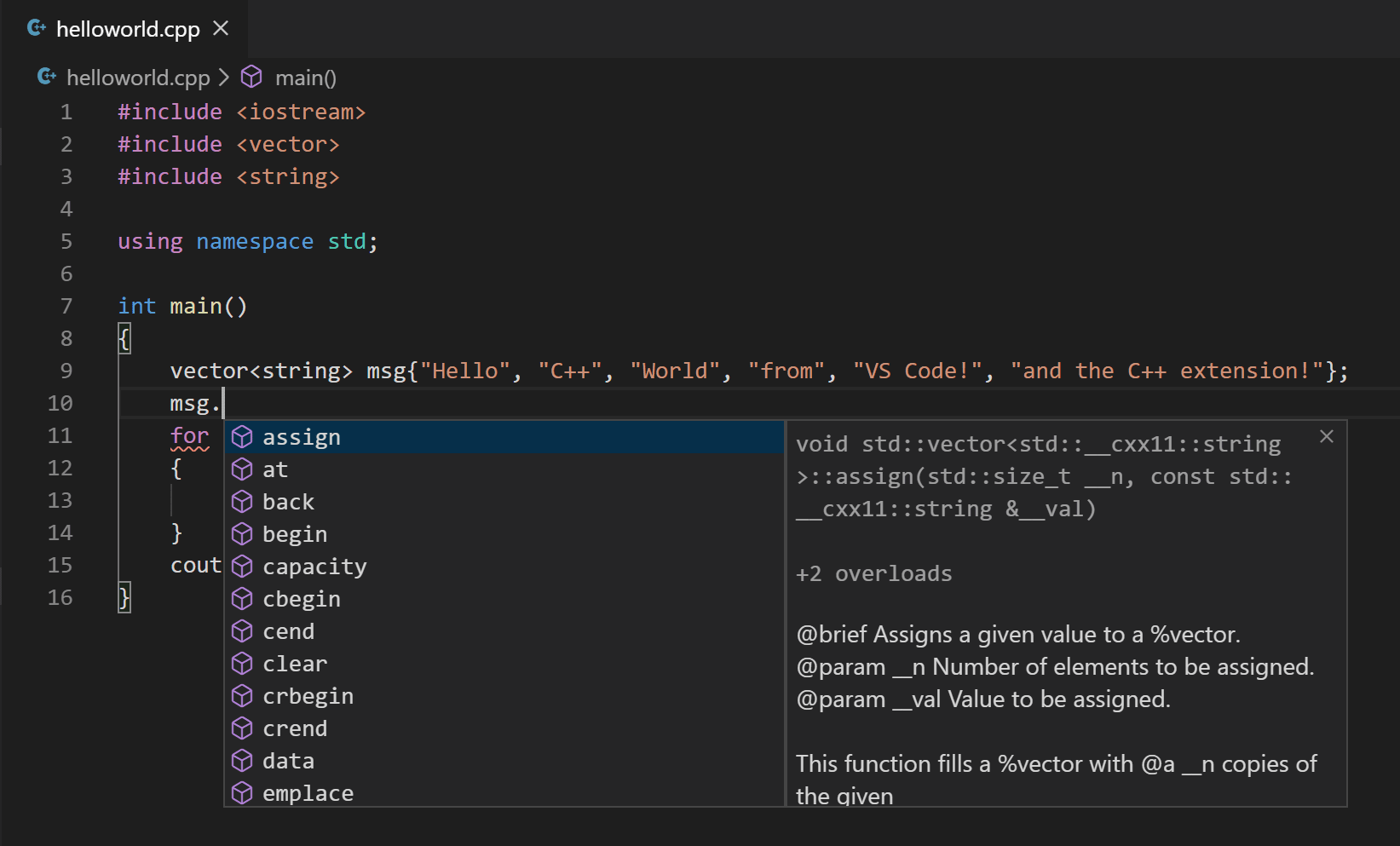
You can press the Tab key to insert the selected member; then, when you add the opening parenthesis, you will see information about any arguments that the function requires.
Build helloworld.cpp
Next, you will create a tasks.json file to tell VS Code how to build (compile) the program. This task will invoke the Microsoft C++ compiler to create an executable file based on the source code.
From the main menu, choose Terminal > Configure Default Build Task. In the dropdown, which will display a tasks dropdown listing various predefined build tasks for C++ compilers. Choose cl.exe build active file, which will build the file that is currently displayed (active) in the editor.

Your new tasks.json file should look similar to the JSON below:
Note: You can learn more about tasks.json variables in the variables reference.
The label value is what you will see in the tasks list; you can name this whatever you like.
Running the build
When the task starts, you should see the Integrated Terminal panel appear below the source code editor. After the task completes, the terminal shows output from the compiler that indicates whether the build succeeded or failed. For a successful C++ build, the output looks something like this:
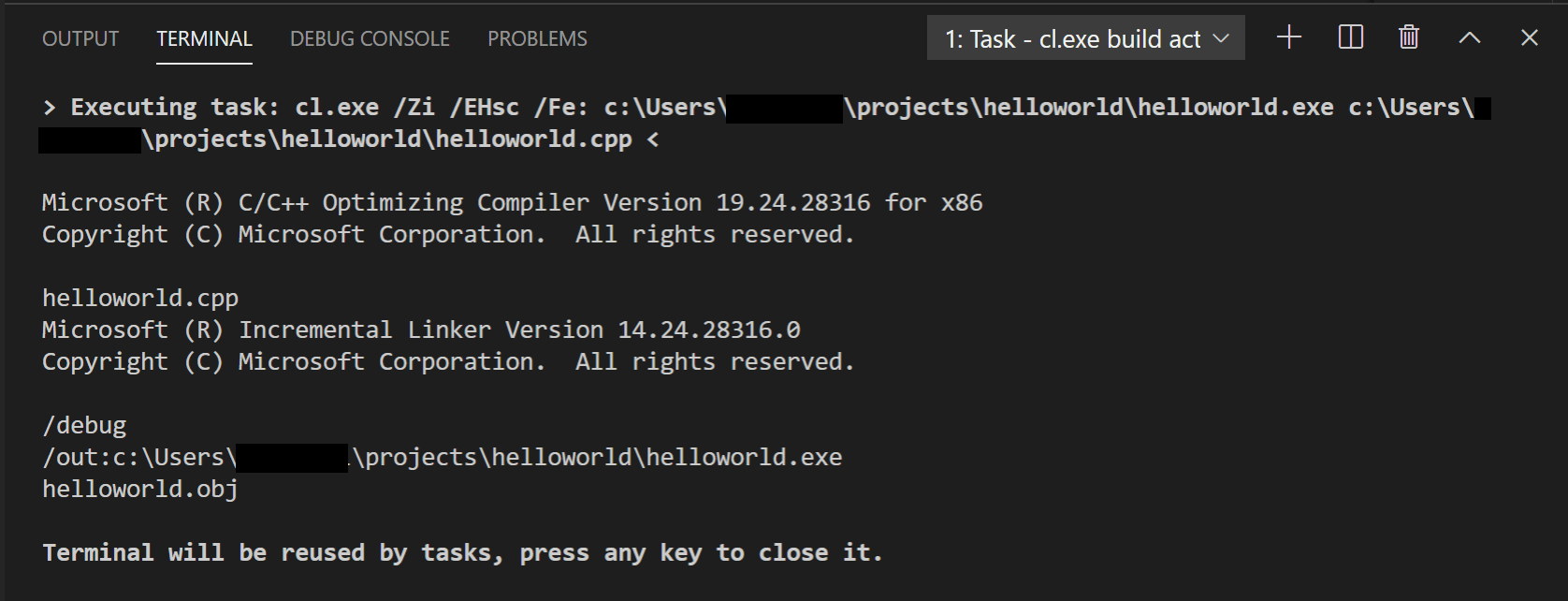
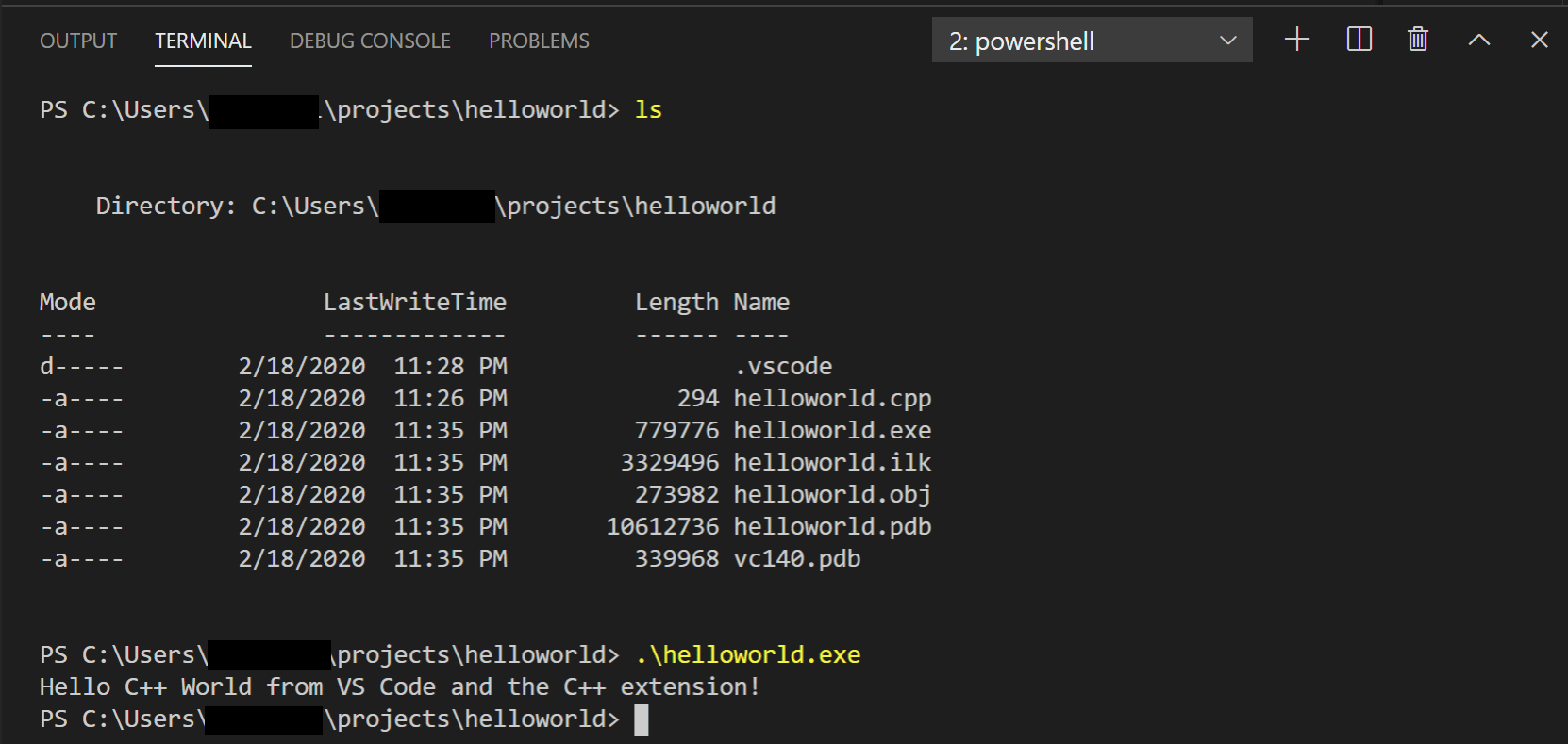
Note: You might need to press Enter a couple of times initially to see the PowerShell prompt in the terminal. This issue should be fixed in a future release of Windows.
Modifying tasks.json
Debug helloworld.cpp
Next, you’ll create a launch.json file to configure VS Code to launch the Microsoft C++ debugger when you press F5 to debug the program. From the main menu, choose Run > Add Configuration. and then choose C++ (Windows).
You’ll then see a dropdown for various predefined debugging configurations. Choose cl.exe build and debug active file.

VS Code creates a launch.json file, opens it in the editor, and builds and runs ‘helloworld’.
Start a debugging session
The Integrated Terminal appears at the bottom of the source code editor. In the Debug Output tab, you see output that indicates the debugger is up and running.
The editor highlights the first statement in the main method. This is a breakpoint that the C++ extension automatically sets for you:
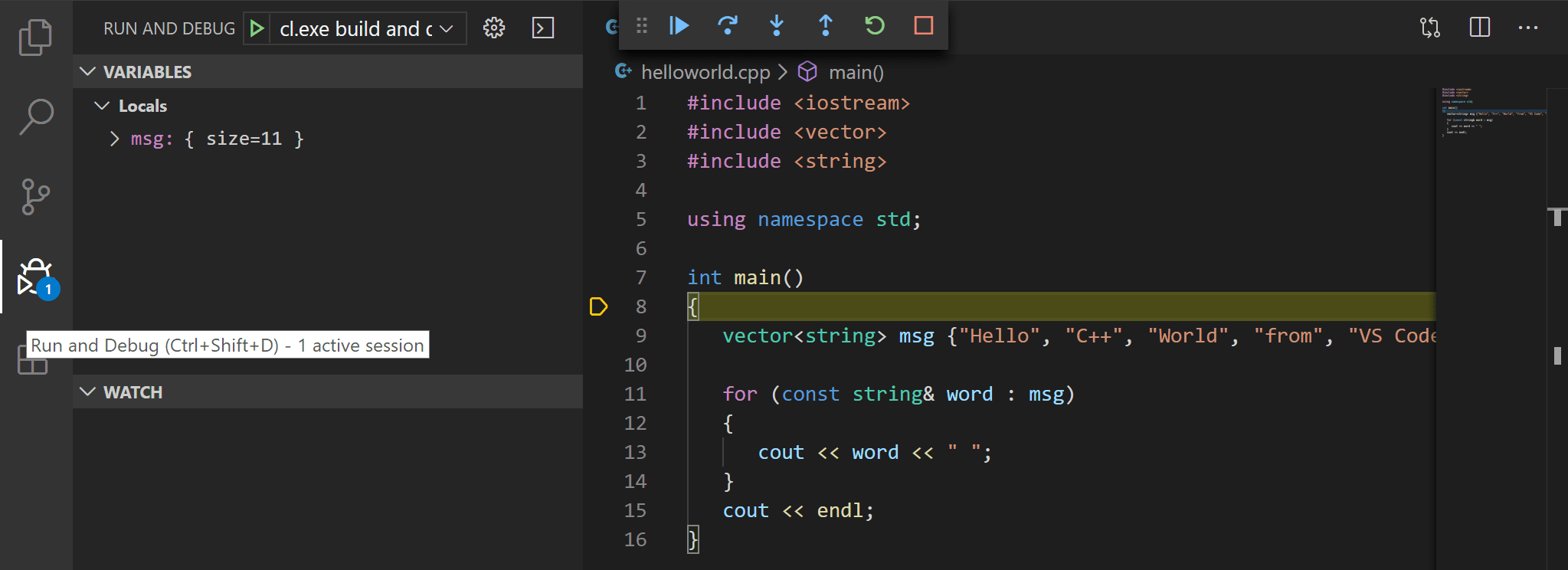
The Run view on the left shows debugging information. You’ll see an example later in the tutorial.
At the top of the code editor, a debugging control panel appears. You can move this around the screen by grabbing the dots on the left side.
Step through the code
Now you’re ready to start stepping through the code.
Select the Step over icon in the debugging control panel until the for (const string& word : msg) statement is highlighted.
The Step Over command skip over all the internal function calls within the vector and string classes that are invoked when the msg variable is created and initialized. Notice the change in the Variables window on the left. In this case, the errors are expected because, although the variable names for the loop are now visible to the debugger, the statement has not executed yet, so there is nothing to read at this point. The contents of msg are visible, however, because that statement has completed.
Press Step over again to advance to the next statement in this program (skipping over all the internal code that is executed to initialize the loop). Now, the Variables window shows information about the loop variables.
Press Step over again to execute the cout statement. Note As of the March 2019 version of the extension, no output is displayed until the loop completes.
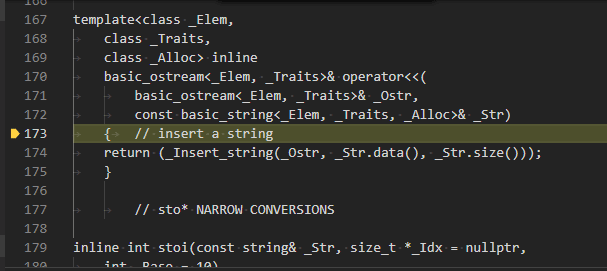
If you like, you can keep pressing Step over until all the words in the vector have been printed to the console. But if you are curious, try pressing the Step Into button to step through source code in the C++ standard library!
Set a watch
Sometimes you might want to keep track of the value of a variable as your program executes. You can do this by setting a watch on the variable.
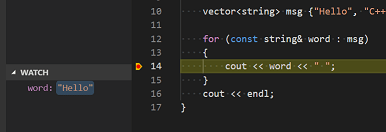
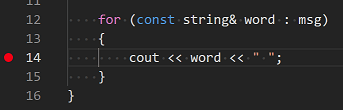
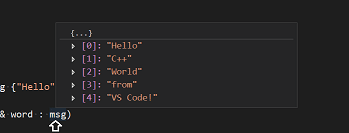
To quickly view the value of any variable while execution is paused on a breakpoint, you can hover over it with the mouse pointer.
C/C++ configurations
If you want more control over the C/C++ extension, you can create a c_cpp_properties.json file, which will allow you to change settings such as the path to the compiler, include paths, C++ standard (default is C++17), and more.
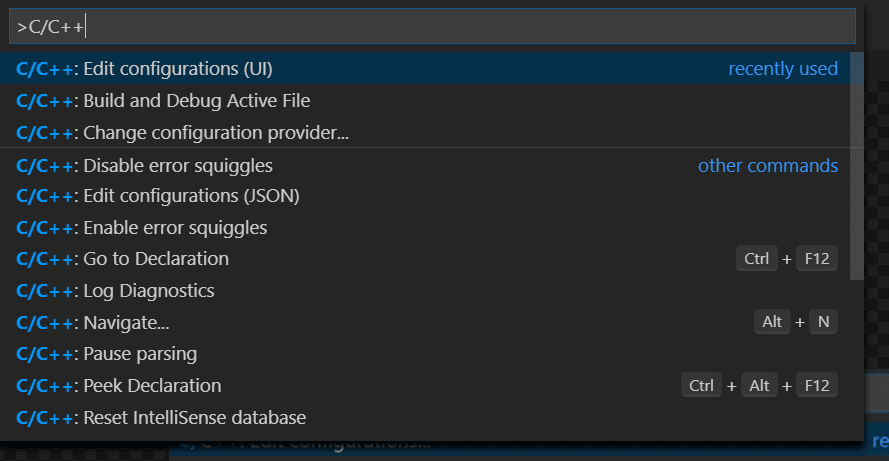
You can view the C/C++ configuration UI by running the command C/C++: Edit Configurations (UI) from the Command Palette ( ⇧⌘P (Windows, Linux Ctrl+Shift+P ) ).
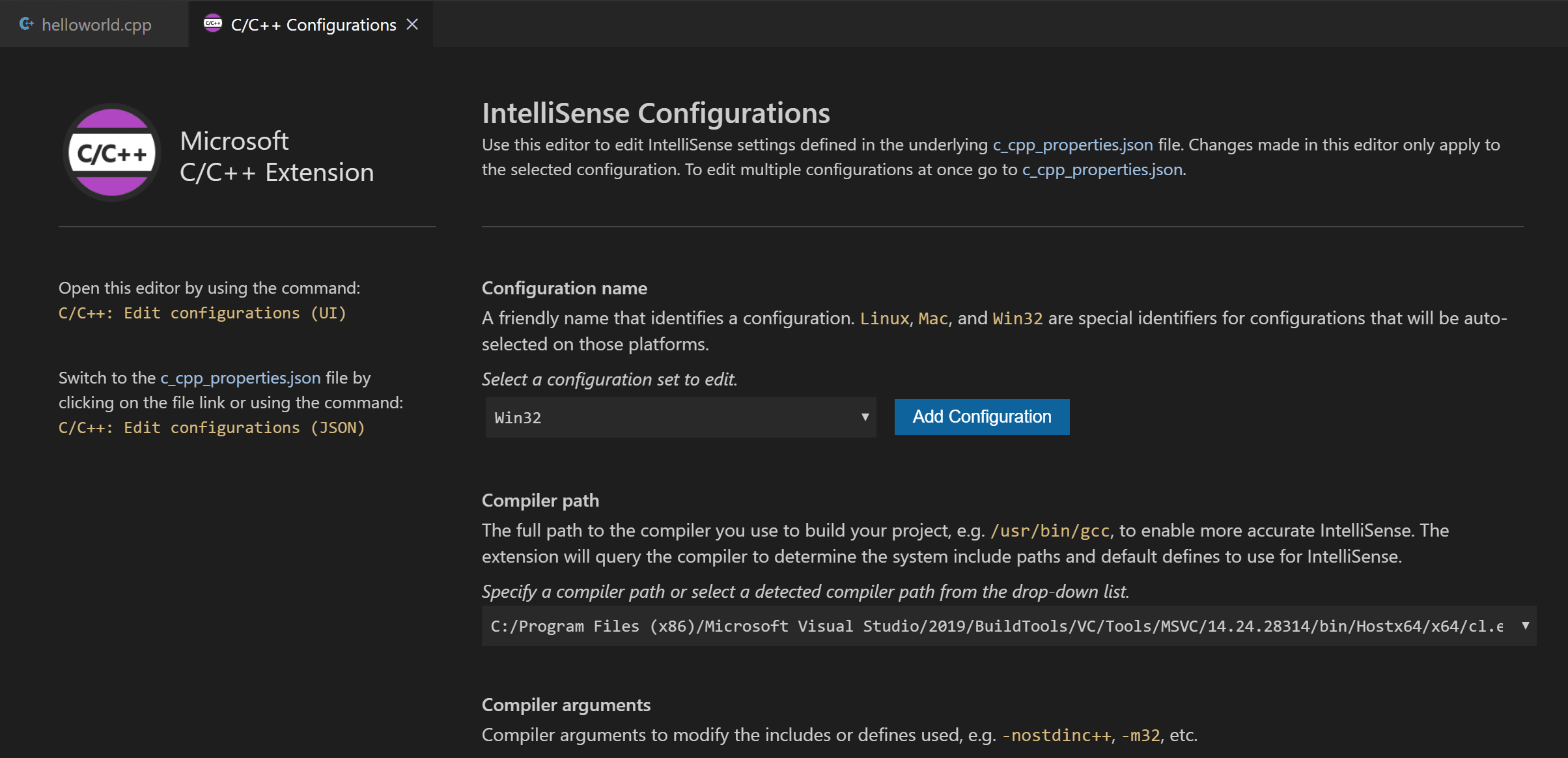
You only need to add to the Include path array setting if your program includes header files that are not in your workspace or in the standard library path.
Compiler path
The compilerPath setting is an important setting in your configuration. The extension uses it to infer the path to the C++ standard library header files. When the extension knows where to find those files, it can provide useful features like smart completions and Go to Definition navigation.
The C/C++ extension attempts to populate compilerPath with the default compiler location based on what it finds on your system. The extension looks in several common compiler locations.
The compilerPath search order is:
If you have g++ or WSL installed, you might need to change compilerPath to match the preferred compiler for your project. For Microsoft C++, the path should look something like this, depending on which specific version you have installed: «C:/Program Files (x86)/Microsoft Visual Studio/2017/BuildTools/VC/Tools/MSVC/14.16.27023/bin/Hostx64/x64/cl.exe».
Reusing your C++ configuration
Run VS Code outside the Developer Command Prompt
In certain circumstances, it isn’t possible to run VS Code from Developer Command Prompt for Visual Studio (for example, in Remote Development through SSH scenarios). In that case, you can automate initialization of Developer Command Prompt for Visual Studio during the build using the following tasks.json configuration:
Troubleshooting
The term ‘cl.exe’ is not recognized
If you see the error «The term ‘cl.exe’ is not recognized as the name of a cmdlet, function, script file, or operable program.», this usually means you are running VS Code outside of a Developer Command Prompt for Visual Studio and VS Code doesn’t know the path to the cl.exe compiler.
VS Code must either be started from the Developer Command Prompt for Visual Studio, or the task must be configured to run outside a Developer Command Prompt.