
Space engineers создание модов

Вы здесь

Мультиплеер:
Офлайн-игры могут использовать локальные моды и моды из Мастерской с любым доступом. В мультиплеере могут быть использованы только моды из Мастерской с публичным доступом (по умолчанию).
Если клиент, присоединяющийся к игре, не может скачать мод (например, если этого не позволяют настройки приватности), может случиться что-то нехорошее.
Что может быть модифицировано:
— Скайбоксы
— Блоки, компоненты, слитки, руды, материалы астероидов
— Модели персонажей, анимация
— Кастомная анимация персонажей (приветствие, фейспалм и так далее)
— Прозрачные материалы (используются для свечения двигателей)
— Стартовые базы и корабли (частично)
— Модели обломков
— Снаряды пусковых установок
Каталог модов:
Моды располагаются по адресу: C:\Users\

Скачать SkyboxMilkyWay можно здесь: http://mirror.keenswh.com/Temp/SkyboxMilkyWay.zip (12)
Также здесь могут быть другие папки, например «Models».

1) Создайте папку C:\Users\
2) Создайте папку C:\Users\
3) Создайте папку C:\Users\
4) Скопируйте «Sphere.mwm» в «SphereBlock\Models»
5) Создайте «SphereBlock\thumb.jpg»
6) Создайте пустой файл «SphereBlock\Data\CubeBlocks_Sphere.sbc»
7) Скопируйте параметры блока в файл:
CubeBlock
LargeSphereBlock
Large Sphere
Textures\GUI\Icons\Cubes\window
Large
TriangleMesh
Models\Sphere
SphereBlockPairName
Light
10
SphereBlockPairName
Модель должна быть в папке «Models», иначе игра не загрузит ее.
sbc-файлы должны быть в папке «Data», иначе см. предыдущий пункт.
Я загрузил мод в Мастерскую: http://steamcommunity.com/sharedfiles/filedetails/?id=294468758
ДОПОЛНИТЕЛЬНЫЕ СВЕДЕНИЯ:
Модификация контента:
В папке «SpaceEngineers/Content/Data» вы можете увидеть игровые ресурсы.
Она включает в себя блоки, модели персонажей, чертежи, настройки окружения (скайбоксы и настройки солнца) и многое другое.
Многим из этих ресурсов требуются дополнительные файлы, такие как текстуры и модели.
Их пути должны быть указаны относительно папки с модом или корневой папки с ресурсами.
Например, файл «Textures\BackgroundCube\Final\MilkyWay», требуемый моду SkyboxMilkyWay, должен быть найден по следующим адресам:
C:\Users\
Прим. : расширение «.dds» автоматически добавляется к текстурам.
В моде вы можете указывать ссылки только на контент внутри этого мода, либо на корневую папку игры, перекрестные ссылки между модами не работают!
Игра не будет загружать текстуры и модели из мода, если на них не ссылается ни один файл.
Например, мод содержит только один файл «Textures\BackgroundCube\Final\BackgroundCube.dds» (такое же название имеет оригинальный скайбокс).
В таком случае, игра не загрузит его. Вам необходимо создать Environment.sbc и поместить туда ссылку на файл.
Обработка контента в игре:
В первую очередь загружается оригинальный контент.
Затем загружается первый мод, который добавляет новый контент либо заменяет существующий (или отключает его).
Далее загружается второй мод, который может переписать оригинальный контент или первый мод.
Например:
В оригинальной игре есть блок с параметрами TypeId «Drill» и SubtypeId «LargeBlockDrill».
Когда мод объявляет блок с параметрами TypeId «Drill» и SubtypeId «LargeBlockDrill», он переписывает оригинальный блок.
Когда мод объявляет блок с параметрами TypeId «Drill» и SubtypeId «LargeCrazyDrill», он добавляет новый тип блока.
Если моду требуется отключить данный тип блока, в него нужно добавить следующие параметры:
Become a Space Engineer
Modding
Basic modding guide:
IMPORTANT: Don’t forget to back up your game folder before making any changes
\Steam\steamapps\common\SpaceEngineers
MODDING API
The Modding API brings a lot of new possibilities to modders and allows them to alter the game by writing C# scripts which have access to in-game objects
For more info and instructions please read our Modding API Guide.
Modding API forum: http://forums.keenswh.com/?forum=408074
SPACE ENGINEERS ModSDK
Space Engineers – ModSDK, is an application that includes a set of tools specifically created for modding. The application is totally free for everyone, even for those who don’t own Space Engineers game. In order to find it, open the Steam client, go to Library, Tools, type “Space Engineers ModSDK” in the searchbox and just follow the steps to install it.
Space Engineers – ModSDK includes the following modding tools:
Note: textures are not included because they are already in the game
ModSDK will be improved during time and more features will be added
SPACE ENGINEERS – Visual Scripting Tool
Visual Scripting Tool was designed to allow users to design game scenarios for Space Engineers without needing previous coding experience. Mod developers can utilize this tool to create scripted gameplay events, play cutscenes, or modify game values at runtime.
MODDING ACADEMY
A series of video tutorials that will initiate the players into the secrets of modding in Space Engineers
SAVE FILES / WORLD FILES
Every world you generate is saved in its own folder that can be found in
c:\Users\
MOD FILES LOCATION
Each mod has now its own folder located in \Users\
The mod folder has to contain a sub-folder called Data with definition files of added or updated mods. Everything can be replaced/updated by the modder (audio, video, textures, models, gui, etc).
SHADERS
Files with FX and FXH extension are vertex/pixel shaders for various rendering operations and can be found in steamapps\common\SpaceEngineers\Content\Effects2\
Every shader file gets recompiled on game launch. If you modify one, restart the game. If the game crashes on launch, it’s probably due to a compilation error caused by your changes.
TEXTURES
Almost all textures are in DDS format (DXT compression). You will need an editing program that can manipulate them. If you use Adobe Photoshop, we recommend installing this plugin: developer.nvidia.com/nvidia-texture-tools-adobe-photoshop and use these settings for exporting:
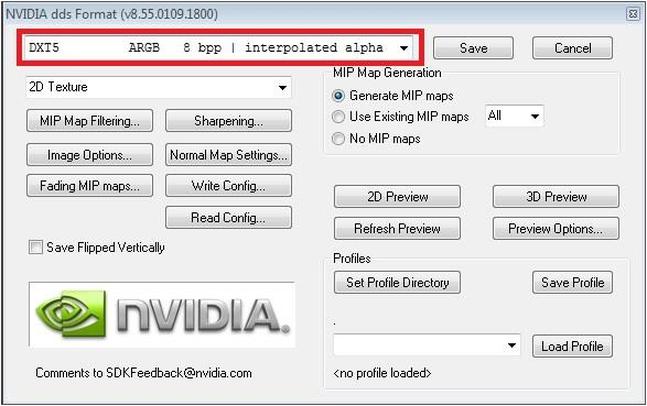
Textures can be found in: steamapps\common\SpaceEngineers\Content\Textures\
There are multiple categories of texture files: GUI, particles, lights, models, voxels, etc.
Model textures with “_ns” in their name contain “normal map” in RGB channels and “specular” in ALPHA channel.
Model textures with “_de” in their name contain “diffuse” in RGB channels and “emissivity” in ALPHA channel.
GAME DATA
Game data is stored in folder: steamapps\common\SpaceEngineers\Content\Data
3D MODELS
MwmBuilder is the tool for building mwm models from fbx files.
Note: You may need administrator rights to copy or create files in Program Files folder; you can copy MwmBuilder and dlls into a different folder.
MwmBuilder Location:
Models are stored in: steamapps\common\SpaceEngineers\Content\Models\
For advanced usage see here: Advanced 3D Models Guide
Space engineers создание модов





There’s new tags on Steam Workshop: «World» and «Mod»
1) Go to Steam Workshop, select mods (right part of screen), subscribe to mods you want
2) Start Space Engineers
3) Select New Game or Load game
4) Go to Edit Settings
5) Click «Mods» button
6) Double-click mods you want to have active for current world
7) Start the game!
You can sort mods in Mods screen.
When multiple mods changes one thing (e.g. skybox), the mod which is loaded last (bottom most in list) will have priority.
Local vs. Workshop mods:
When you start developing a new mod, you create a mod folder locally on your system.
When you’re satisfied with your mod, you can publish it to Steam Workshop.
Now you have two mods, one local and one on Steam Workshop.
You can update local mod and then publish it to Steam Workshop again, this should overwrite the previous version.
Multiplayer:
Offline games can use local mods and workshop mods with any visibility
Multi-player can use only workshop mods with public visibility (default)
If the client who is joining the game fails to download a mod (e.g. because it’s private or local), bad things will happen.
What can be modded:
— skybox
— cube blocks, components, ingots, ore, asteroid materials
— character models, animations
— custom character animations (waving, facepalm. )
— transparent materials (useful for thruster glow)
— cargo ship (only partially)
What can’t be modded yet:
— scenarios and prefabs
— missile launcher projectiles
— audio
— ammo magazines
— GUI
Directory structure:
Mods directory: C:\Users\
Download SkyboxMilkyWay here: http://mirror.keenswh.com/Temp/SkyboxMilkyWay.zip
There can be other directories, like «Models»
Creating new mod:
Create new directory in C:\Users\
Put modified content into this directory (see section Content Modification)
Create thumb.jpg (preview image)
Run the game
Go to Edit world settings (select new game or load game in main menu)
Click mods button
Click your mod and press Publish
(it’s good to test your mod first before publishing)
1) Create directory C:\Users\
2) Create directory C:\Users\
3) Create directory C:\Users\
4) Copy «Sphere.mwm» into «SphereBlock\Models»
5) Create «SphereBlock\thumb.jpg»
6) Create empty file «SphereBlock\Data\CubeBlocks_Sphere.sbc»
7) Paste block definition into file:
Models must be in directory «Models» otherwise game would not load it.
Definitions must be in directory «Data», otherwise game would not load it.
I’ve uploaded mod to workshop: http://steamcommunity.com/sharedfiles/filedetails/?id=294468758
ADVANCED TOPICS:
Content modification:
See directory «Content/Data» inside game dir, there’s all game data definitions.
Including cube blocks, character models, blueprints, environmental settings (skybox and sun settings) and many other things.
Many of these definitions require additional files, like textures and models.
These paths must be specified relative to mod directory or content directory.
E.g. file «Textures\BackgroundCube\Final\MilkyWay» from SkyboxMilkyWay mod
will be search there:
C:\Users\
note: «.dds» extension is automatically added for textures
In mod, you can reference only files from current mod and original content, one mod cannot use files from different mod!
Game won’t load textures and models from mod, unless there’s some definition file in mod referencing it.
E.g. when mod contains only this file «Textures\BackgroundCube\Final\BackgroundCube.dds» (same file name as original skybox)
Game won’t load it. You have to add Environment.sbc and put the path here.
Content handling in game:
Game loads original content first.
The first mod added to the game will automatically overwrite files it needs to replace in the original game files.
If a second mod is added, and it also makes changes to the same game files the first mod changed, no changes will be made, as the first mod loaded into the game has priority.
E.g.
In original content, there’s cube block definition with TypeId «Drill» and SubtypeId «LargeBlockDrill».
When mod defines cube block with TypeId «Drill» and SubtypeId «LargeBlockDrill», it will overwrite original block
When mod defines cube block with TypeId «Drill» and SubtypeId «LargeCrazyDrill», it will add new type of drill
When mod wants to disable this drill, it should add this definition:
To get in to the mods and see the files, go to C:\Users\User\AppData\Roaming\SpaceEngineers\Mods and rename the mod.sgm to mod.zip and than unzip the file. After this operation, you will be able to see the inside of mod and the mod will be visible in game mod screen with a folder icon.
KEEN SWH Game block:
— This mode has a test block that can be built inside the game and works both on large and small ships
http://steamcommunity.com/sharedfiles/filedetails/?id=295867526&searchtext=
KEEN SWH Character reskin:
— This mode includes two reskin designs of astronauts, Engineer and Pirate
— This mode is a pack, which means you can set more astronaut desings in to a mode and create themed astronaut designs to create more specific faction designs or a story line in your worlds
http://steamcommunity.com/sharedfiles/filedetails/?id=296192689&searchtext=
KEEN SWH Salute gesture animation:
— This mode includes one gesture animation
— Mod file also includes xml and fbx file for better understandig the mod creation
— For better understanding of gesture animation modding, see the Gesture animation modding section in this guide
http://steamcommunity.com/sharedfiles/filedetails/?id=297208992&searchtext=
KEEN SWH Medium thruster:
— Only for large ship
— This mode shows possibilities of thruster modding
— Now you can make your own trhusters, set color, effects and power
— For better understanding of gesture animation modding, see the Thrusters modding section in this guide
http://steamcommunity.com/sharedfiles/filedetails/?id=297207615&searchtext=
To find out more about how to create a game asset, or edit the existing one, visit pages liested below:
Download KEEN SWH Salute gesture animation from the link below, for better understanding of how to mod an animation
To get in to the mods and see the files, go to C:\Users\User\AppData\Roaming\SpaceEngineers\Mods and rename the mod.sgm to mod.zip and than unzip the file. After this operation, you will be able to see the inside of mod and the mod will be visible in game mod screen with a folder icon.
1. Make animation in animation software like 3ds Max, Maya, Motion Builder, Blender, XSI Softimage, etc. You must use our FBX file Astronaut(for example idle.fbx)
2. Export animation to FBX, in our case it’s call salute.fbx and put this fbx to Tools folder:
C:\Program Files (x86)\Steam\SteamApps\common\SpaceEngineers\Tools
3. When you run only MwmBuilder.exe, it’s creating only salute.mwm. When you want create also xml file, you must run MwmBuilder.exe with parameter /e(to do so, go to Total Commander, select MwmBuilder.exe, CTRL+ENTER and down write /e, hit ENTER), now MwmBuilder create xml for you, it will looks like this:
4. Run MwmBuilder.exe /e one more time and you get also material in xml, like this:
7. Run MwmBuilder.exe one more time, now without /e.
8. Now our salute.mwm is ready to use
9. Copy this mwm to SpaceEngineers\Content\Models\Characters\Animations\ or folder of your choose.
10. Go to SpaceEngineers\Content\Data\ where you find Animations.sbc
11. Now we must add our animation
12. Copy animation definition for example:
Custom Thrusters Modding Guide
To get in to the mods and see the files, go to C:\Users\User\AppData\Roaming\SpaceEngineers\Mods and rename the mod.sgm to mod.zip and than unzip the file. After this operation, you will be able to see the inside of mod and the mod will be visible in game mod screen with a folder icon.
1. Construct a model in any modelling software with an FBX export option (Maya, Max etc)
2. Ensure the model has correct dummies in place. Dummies must be placed where you’d like the exhaust flame to appear, You can have as many exhaust flames as you want, but only the first one will do damage (for now). Dummies must be named ‘’thrusters_flame_1’’
3. Export the model (and dummies) as an FBX, and place it in this file:
C:\Program Files (x86)\Steam\SteamApps\common\SpaceEngineers\Tools
4. Next you’re going to need to make a Collision model, for information on how to do so, go to this page here: http://www.spaceengineersgame.com/moddable-collision-models.html
6. Once you have created the actual model file, it’s time to add it into the game, and this is where the real moddability is.
7. Navigate to your CubeBlocks.sbc, you will find this here: C:\Program Files (x86)\Steam\SteamApps\common\SpaceEngineers\Content\Data. And open it with any text editor, we recommend notepad++.
a. In Cubeblocks, you have the ability to add and change any parameter that the thruster will use. Use CTL-F to find the large thruster in the base game in cubeblocks:
Thrust
LargeBlockLargeThrust
DisplayName_Block_LargeThrust
Textures\GUI\Icons\Cubes\thrust_large.dds
Large
TriangleMesh
Models\Cubes\Large\ThrustLarge.mwm
LargeThrust
Z
Y
Light
40
1200000
6.72
0.000002
0.6
1.15
0.2745098
0.4090196
0.6505882
0.75
0.2745098
0.4090196
0.6505882
0.75
EngineThrustMiddle
EngineThrustMiddle
GlareLsThrustLarge
700
0.779
3
Continue with Thruster modding part 2/2
This can see extremely daunting at first, but the definition is actually rather simple:
— The TypeID must be set to Thrust, otherwise the game will not recognize it as a thruster.
— The SubtypeID can be anything you want, but it must be unique.
— The Display name is what will be displayed in game in the G-screen when you hover over it, and what will be displayed when the block is looked at with a tool.
— The Icon path is where the icon for your block should be placed.
— The Cubesize determines what block type you can place the block on, ‘Large’ means it can be placed on large ships and stations, and ‘Small’ means small ships. This part of the definition MUST be in this format, with a capital letter at the start, else the game will not recognize it.
— Block Topology must be set to TriangleMesh, anything else will not be recognized by the game.
— The Size dictates how large the block will be in game in XYZ, the number refers to the amount of blocks. EG: Large Containers are 3x3x3, Refineries are 2x2x4.
— The components refers to the amount of construction components needed to build the block in survival.
— The mount points refer to where on the model objects can be placed, and at what points the model can be connected to other models. EG: An interior light can only be placed on surfaces where its geometry touches other geometry, it cannot be mounted with its geometry floating, even though the block fills up a 1x1x1 block space in the grid.
— The build progress models are the construction models, seen in game in order when you weld something, or in reverse when you grind it, this requires more models to be made and placed in the corresponding directories.
— BlockPairName must be unique and refer to something to do with the model, it will be used later on.
— Center is where the block will be rotated around.
— The mirroring options should be left as they are in all other blocks.
— EdgeType is the type of edging that will be used on the block (only works on armor blocks)
— Build-Time is the amount of time it takes to weld the block from 0-100% in survival on 1x setting.
— Now we come to the parts of the definition that are unique to thrusters:
— Force Magnitude – The amount of force the thruster can give when at 100% power, Use other thrusters for reference on how powerful you want your thruster to be.
— MaxPowerConsumption Is the amount of power that will be consumed when the thruster is firing at 100%, as before, use other thrusters and blocks for reference, A huge thruster with massive force magnitude would probably use a lot more power than the default thrusters, unless it’s some super-efficient design.
— MinPowerConsumption is the amount of power the thruster will use when idle.
— FlameDamageLegnthScale is the length of the flame when at full power than can do thruster damage.
— FlameLegnthScale is the length of flame when at full power, and may not be the same as the damage setting, as the end of the flame may not have the required power to damage armor, for example.
— FlameIdleColor and FlameFullColor are exactly what you’d expect, the color of the flame at full, and idle operating ranges. This number between 1 and 0 for XYZ and W, represents the RGBA values of the color. The RGB is calculated by 100/255*X, with X being the value you want. The A value is the alpha, with 0 being 100% transparent, and 1 being completely opaque.
— FlamePointMaterial, FlameLegnthmaterial and FlameGlareMaterial are all texture files which dictate the material used for the flame, these can be edited by changing these files, which can be found in the game directory. Although we suggest you just use the default ones, and change the color and scale.
— Flame Visibility distance is the distance in game what you can see the thruster flame, use this when considering performance issues.
Now that the model file is in place, and your CubeBlocks has been changed, it’s time to load up the game and see if your model is working.
If for some reason your block doesn’t work, then you’ve made a mistake somewhere along the line, which is entirely possible as it’s extremely hard to get everything right first time. You can look at the log file and see which part of the loading process went wrong.